
Before you start
- The service must be offered Online. In-person bookings never get a join link.
- Your client needs an email address and a client portal login. The join link asks them to log in.
- On the free plan, you can book up to 4 video calls. Paid plans have no video limit.
Steps
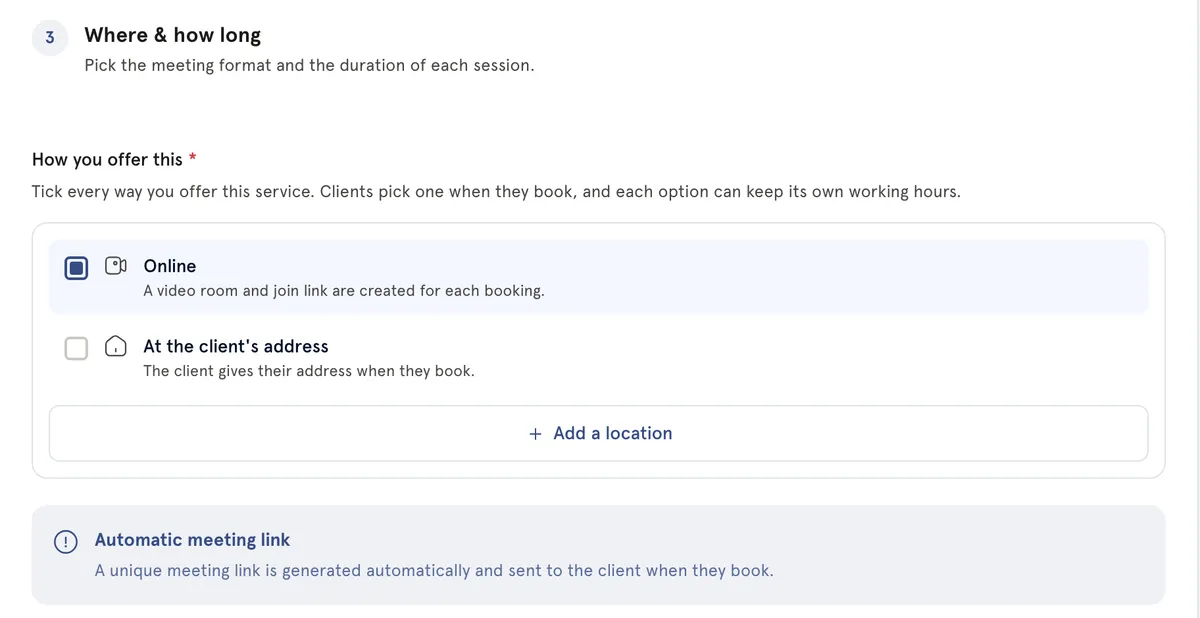
- Open your service. Under Where & how long, tick Online under How you offer this. You’ll see Automatic meeting link — a video room and join link are created for each booking.
- Book your client into that service. Keep the client confirmation email switched on, or they won’t get the link.
- Near the start time, open your New session booked email and select the Join online link.
- Log in if asked. You’ll see Joining session…, then the call.
- Use Mute and Turn camera off if you need them.
- To finish, select End call. Then select End call again to confirm.
What happens next
When the booking is made, MyWellOps sets up a video room. Your client gets an email headed Your session is confirmed for plus the date. It includes a Join online link. They also get reminder emails with the link 24 hours and 2 hours before the session.
Your client selects the link and logs in. They then go straight into the call. They can also join from their appointments in the client portal, using Join Session.
Good to know
- You can only join shortly before the start time, and not after the booked end time. If you’re too early, you’ll see “You can join the session … minutes before the start time”. If you’re too late, you’ll see This session has ended.
- Not a Remote Session means the appointment wasn’t booked as a video service.
- Only you and the booked client can open the link. Anyone else is sent to the login page.
- Your client also gets reminder emails 24 hours and 2 hours before the session.