
Before you start
- Have your Google account sign-in details to hand.
- Allow pop-ups for MyWellOps in your browser. Google opens in a pop-up window.
Steps
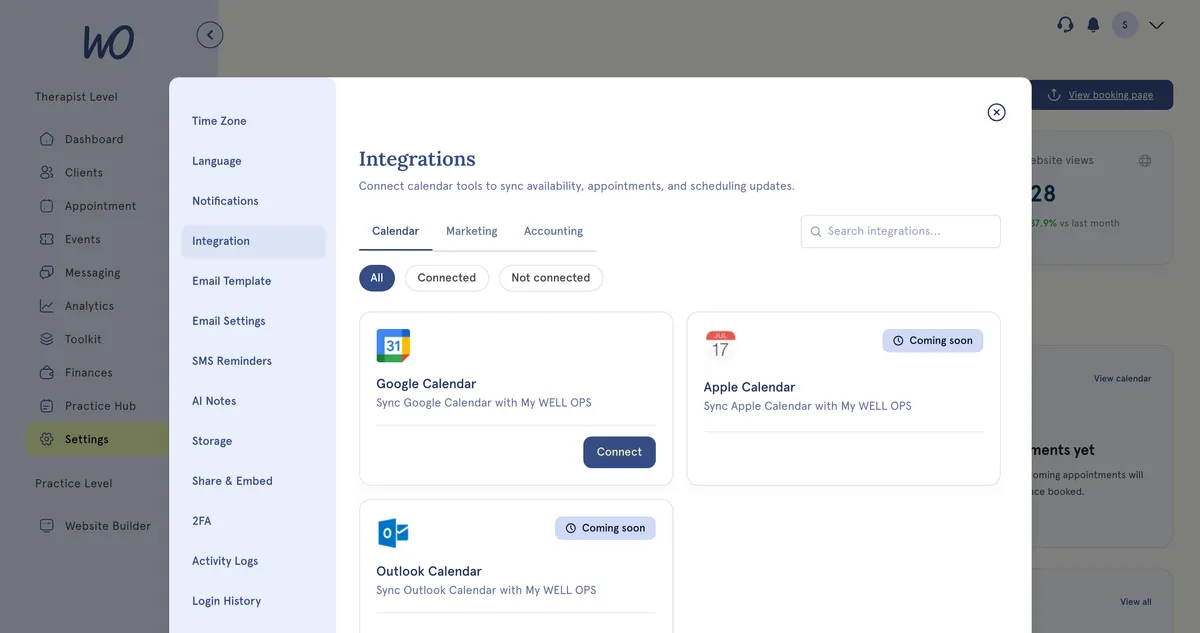
- In the sidebar, select Settings.
- Select Integration. The Calendar tab opens.
- On the Google Calendar card, select Connect.
- A Connection instructions window opens, and Google opens in a pop-up. If the pop-up doesn’t appear, select RETRY.
- Sign in to Google and allow access.
- The pop-up closes and you see Calendar Account Added. Select CLOSE.
- If nothing happens after you allow access, select NEXT. MyWellOps checks the connection. If you see Not connected yet, finish in the Google pop-up, then select NEXT again.
What happens next
- The card shows Connected and your Google email address.
- Events from your main Google calendar appear in the calendar view on your Appointment page. They’re for reference only. You can’t open or edit them in MyWellOps.
- Times that are busy on your main Google calendar are hidden from clients booking online — through your booking page, widget or client portal. Events you’ve marked Free in Google don’t block anything.
- When an upcoming appointment is booked, rescheduled or cancelled, MyWellOps updates your Google Calendar to match. Appointments show as busy time. Buffer and travel time are added as separate busy blocks.
Good to know
- The Google event title includes the service name and the client’s name.
- To refresh or remove the link, select Manage on the card. Then select RESYNC or DISCONNECT.
- A booking still goes through even if Google can’t be updated at that moment.
- Apple Calendar and Outlook Calendar are marked Coming soon.
- MyWellOps asks Google for permission to view your calendars and manage events.
- Editing or deleting an event in Google doesn’t change the appointment in MyWellOps. Make changes in MyWellOps and they’ll reach Google.
Troubleshooting
Nothing happens when I select Connect. Your browser has probably blocked the pop-up. Allow pop-ups for MyWellOps, then select RETRY.
Appointments show at the wrong time in Google. Check your time zone under Settings → Time Zone matches where you practise, not just your computer’s setting.
My Google events aren’t showing. Only your main Google calendar is read. Open Manage on the card and select RESYNC. If that doesn’t help, select DISCONNECT and connect again.