
Before you start
The dashboard is the first page you see after signing in. To get back to it, select Dashboard at the top of the sidebar.
Steps
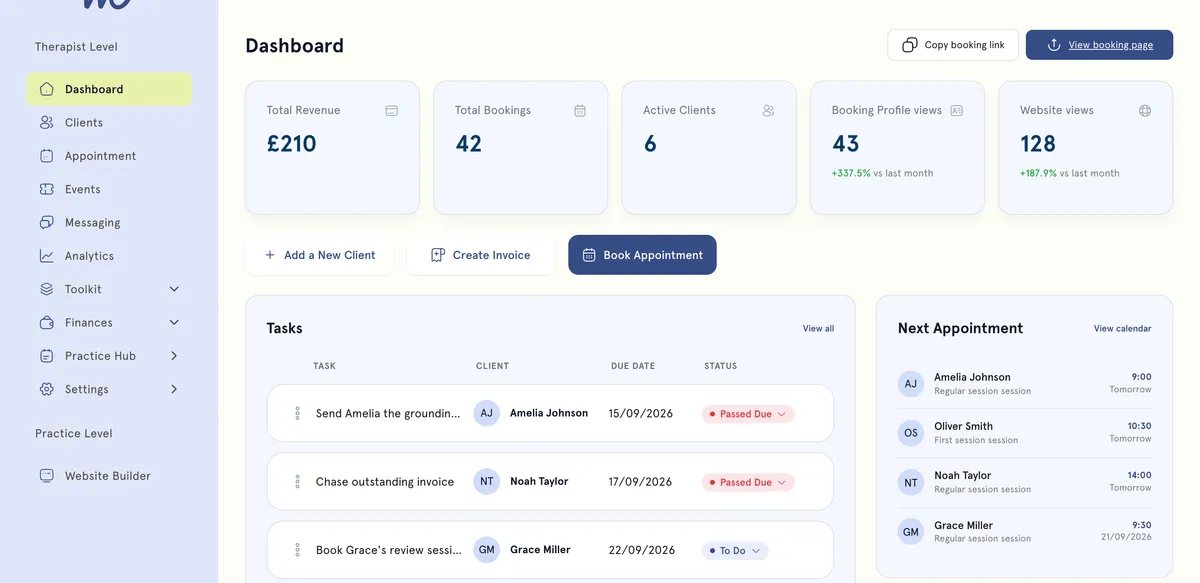
- At the top, use Copy booking link to copy your booking page address, or View booking page to open it.
- Read the five cards. What each one counts is explained below.
- Use the shortcuts under the cards: Add a New Client, Create Invoice or Book Appointment. Each takes you to the right page to create one.
- Check the lists further down. Select View all on a list, or View calendar on Next Appointment, to open the full page.
What the cards count
The cards are running totals since you started, not figures for a date range.
- Total Revenue. Every payment recorded as successful in MyWellOps. That includes card payments for sessions, bundles and events, and payments you record against invoices yourself. Refunds and fees aren’t taken off.
- Total Bookings. Every appointment in your account, whatever its status. That includes upcoming, completed, missed and cancelled sessions. Event places aren’t included.
- Active Clients. Every client in your client list, whatever their status. It isn’t limited to clients seeing you now.
- Booking Profile views. How many times visitors have opened your booking page.
- Website views. How many times visitors have opened pages of your practice website, blog included.
For both view counts, your own visits while you’re signed in aren’t counted. If the same visitor reloads a page within 30 seconds, it counts once.
The monthly trend
Under each number you may see a percentage and vs last month. It compares what was added this calendar month so far with the whole of last month. For example, new appointments this month against new appointments last month.
Early in the month, the trend often shows a fall, because the month isn’t over yet. If there was nothing last month to compare with, no trend is shown.
The lists
- Tasks. Up to five open tasks, soonest due first. Each shows To Do, In Progress, On Hold or Passed Due.
- Invoices. Your five newest invoices, marked Paid, Awaiting, Overdue, Draft or Void.
- Documents. Five recent documents, marked Signed, Pending, Opened or Draft.
- Next Appointment. Your next four upcoming sessions, labelled Today, Tomorrow or with the date.
- Recent Messages. Your four most recent conversations. The number next to the title is how many have unread messages.
Good to know
- The cards aren’t clickable. For numbers over a date range, such as revenue for last month, use Analytics. See Read your practice analytics.
- To share your booking page, see Share your booking link.
Troubleshooting
Active Clients looks too high. It counts every client you’ve added, including past clients and new leads. For clients who actually had sessions in a period, use Active Clients in Analytics.
Website views stays at 0. Views are only counted on your published practice website, and not while you’re signed in. Open it in a private window, or ask someone else to visit.
A card shows a fall even though business is fine. The trend compares this month so far with all of last month. Check again at the end of the month.