
Before you start
- Have a debit or credit card ready. The welcome steps ask for one to start your free trial.
- Have your practice name and the email address you want clients to contact you on.
- Allow about 10 minutes.
Steps
Complete the welcome steps
- Sign in. A welcome window opens over your dashboard. It says You’re 3 Steps Away From Launching Your Practice.
- If your account has no name yet, enter your First name and Last name first.
- Choose your Industry. Each field appears once you fill in the one before. Complete Modality, Experience Level, Current Client Load and Country. Your country may already be filled in.
- Select Continue.
- On Start your free 7 day trial, enter your card details. The screen says you pay nothing today. Select Start your free 7 day trial. To change your answers, select the back arrow at the top left.
- On Ready to launch your practice?, choose one:
- Book Free Onboarding Call to book a call with our team.
- Continue setup to go to your dashboard.
Add your practice details
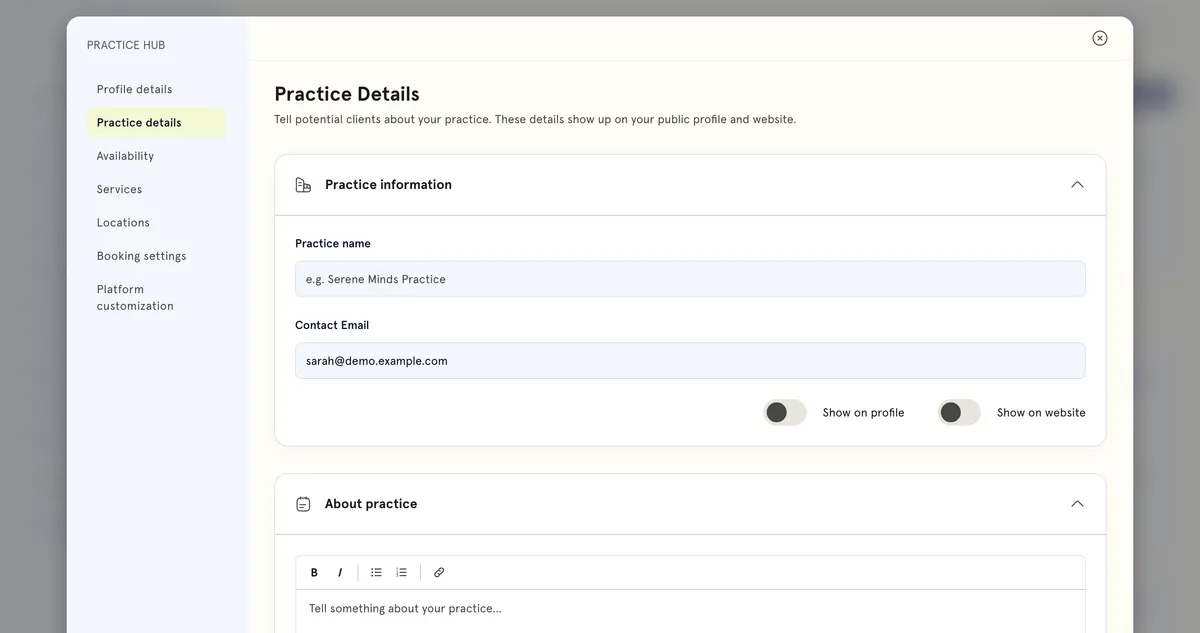
- In the sidebar, select Practice Hub.
- Open Practice details. Under Practice information, fill in Practice name and Contact Email. Contact Email starts as the email you signed up with. Add a description under About practice.
- To show your practice name and contact email on your booking page, turn on Show on profile under Practice information. Do the same under About practice to show the description.
- Select Save changes. While you have unsaved edits, the bottom bar says Not saved yet. After saving it shows Saved.
Set your hours and services 11. Open Availability. Under Working Schedule, select Add to add time slots to a day. Select Save changes. See Set your working hours so clients can book. 12. Open Services. Select + Add Service. Choose Single Session, Bundle or Subscription, then select Continue. See Create a service clients can book.
What happens next
Your free trial is set up with the card you entered. The welcome window doesn’t come back once you’ve finished it. You can change anything in Practice Hub at any time.
Good to know
- The Escape key doesn’t close the welcome window. Finish the steps to reach your dashboard.
- Your Industry and Modality answers are also saved to your profile.
- The Show on profile switches start off. Until you turn them on, your practice name, contact email and description stay off your booking page. Clients can still book with you either way.
- The Show on website switches don’t change your practice website yet. Your choice is saved, but the website doesn’t use it.
- Availability has shortcuts: Copy to all days, Copy to weekdays and Clear day.
- Practice Hub also has Profile details, Locations, Booking settings and Platform customization. For in-person venues, see Add and manage practice locations.
- Next, connect your calendar and payments in Settings → Integration. See Connect your Google Calendar and Connect Stripe so clients can pay online.
Troubleshooting
My practice name isn’t showing on my booking page. Open Practice Hub → Practice details, check Show on profile is on under Practice information, then select Save changes.
Can I change my practice name or email later? Yes. Go back to Practice Hub → Practice details at any time, make the change and select Save changes.