
Before you start
- You finish setup on Stripe’s own website. It opens in a new browser tab.
- You don’t need Stripe to send invoices. Without it, you record payments yourself with Mark as Paid.
Steps
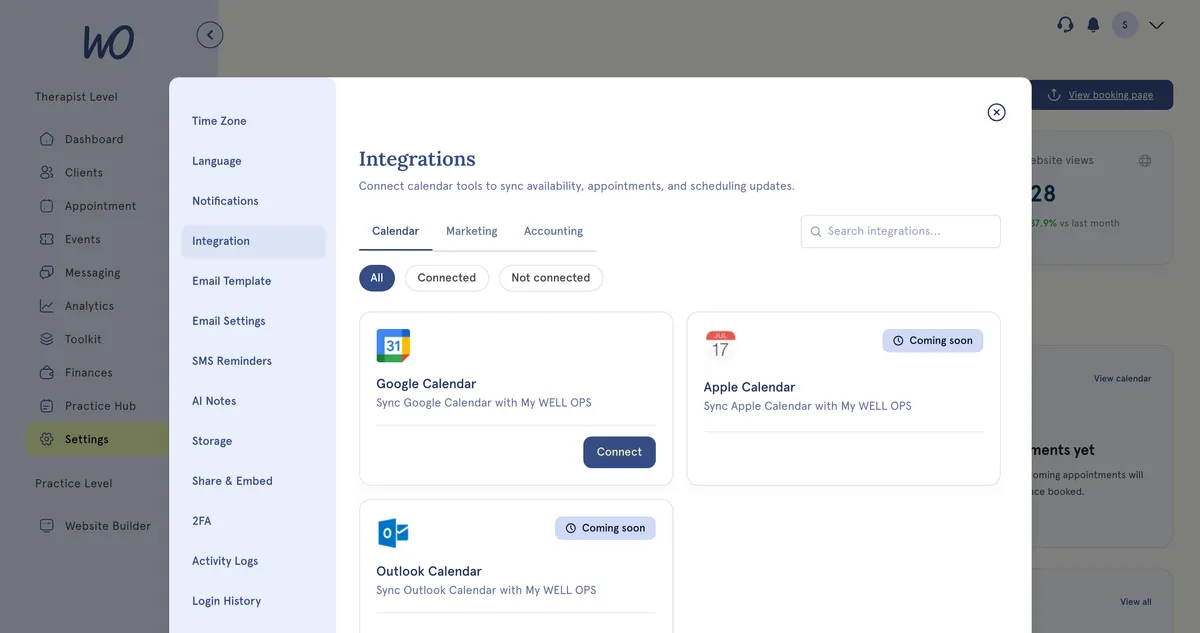
- In the sidebar, select Settings.
- Select Integration.
- Select the Accounting tab.
- On the Stripe card — “Accept card payments and automatically track invoice status” — select Connect. The button shows Opening Stripe… while it loads.
- Complete Stripe’s setup form in the new tab and submit it.
- When you finish, Stripe sends you back to MyWellOps and your Stripe status updates.
You can also start from Finances > Invoices. If Stripe isn’t connected, a Connect to Stripe banner appears at the top. Select Connect account.
What happens next
Once you’ve submitted Stripe’s form, the Stripe card shows Connected.
Stripe may still be checking your details. While it does, the card says Verifying — payments will be enabled shortly. You can’t take online payments yet.
When Stripe has finished, the card shows Connected as followed by your email address. From then on:
- Invoice emails let your client pay online.
- Clients see a Pay with card button when they open an invoice.
Until then, clients who open an invoice are told your practice hasn’t finished setting up online payments.
Good to know
- A platform fee applies to online card payments.
- Select Open Stripe Dashboard to open your Stripe account in a new tab.
- To unlink Stripe, select Disconnect and confirm. This only removes the link to MyWellOps. Your Stripe account stays as it is, and you can connect again later.
- If you close Stripe’s form before finishing, select Connect again to carry on.
Troubleshooting
Connect doesn’t seem to do anything. Stripe’s form opens in a new tab, so check your browser isn’t blocking pop-ups for MyWellOps, or try another browser.
It’s stuck on Verifying. Stripe may need more documents from you. Look for an email from Stripe at the address on your Stripe account.
Can I use a different payment processor? Not for online payments. Stripe is the only one. For anything paid another way, such as cash or a card terminal, record it with Mark as Paid.