
Before you start
- Exports download as CSV files. You can open them in Excel, Numbers or Google Sheets.
- Each export only includes what the list is showing. To export everything, clear any searches and filters first.
Steps
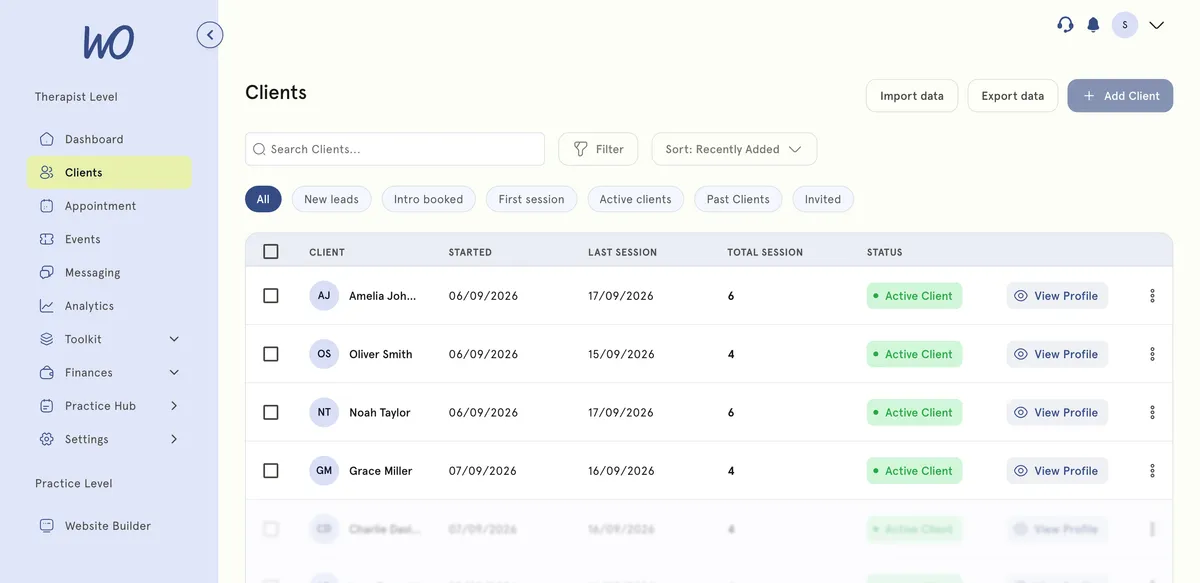
Export your client list
- In the sidebar, select Clients.
- Select Export data.
Export your appointments
- In the sidebar, select Appointment.
- Select Export date.
Export your transactions
- In the sidebar, select Finances, then Transactions.
- Select Export data.
What happens next
A CSV file downloads straight away. Its name includes the list and today’s date, for example clients_export_2026-09-13.csv.
- Client files have Client Name, Start Date, Platform, Status, Last Session and Total Sessions.
- Appointment files have Client Name, Date, Time, Platform and Status.
- Transaction files have the columns you currently have switched on in the table.
Good to know
- These exports are lists only. They don’t include session notes, documents or files.
- There’s no option in the app to close or delete your account.
- To stop paying for a plan, go to Settings → Subscription and use the cancel anytime link.
Troubleshooting
My export is missing clients or appointments. The export only includes what the list is showing. If a filter such as Upcoming or a search is active, clear it and export again.
The file looks messy when I open it. That’s usually your spreadsheet app guessing the format. In Google Sheets, use File → Import → Upload and it lays the columns out for you.
Can I export my session notes? No. Exports are lists only. Session notes, documents and files aren’t included.