
Before you start
- For the logo, have a square image ready — SVG, PNG, JPG or GIF, up to 5MB.
- This changes how MyWellOps looks to you and your clients. To style your practice website, see Change your website theme.
Steps
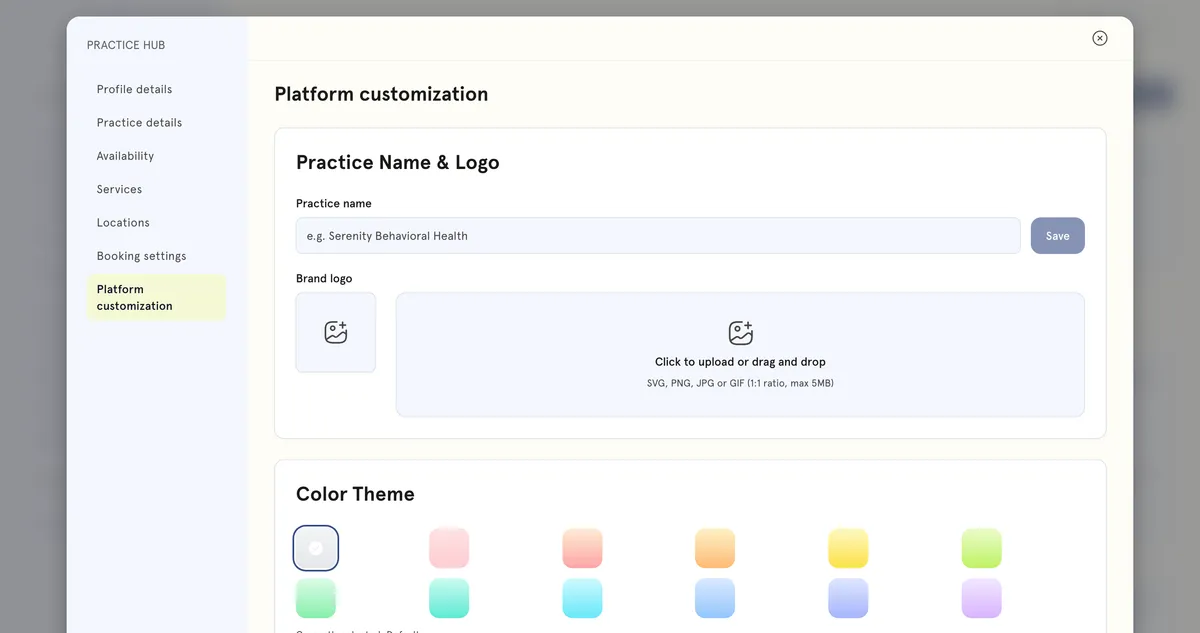
- In the sidebar, select Practice Hub, then Platform customization.
- Under Practice Name & Logo, check your practice name. If you change it, save it with the button next to the field.
- Drag your logo into the upload box, or select Click to upload or drag and drop. It saves as soon as it uploads.
- Under Color Theme, choose a theme.
- Select Save changes.
To go back to the standard look, select Reset to defaults. This undoes changes you haven’t saved yet.
What happens next
- Your theme and logo apply across your MyWellOps workspace and your clients’ portal.
- Your logo also appears on your invoices and your booking profile.
Good to know
- Themes are preset colour schemes. You can’t enter your own colour codes.
- The Fonts section doesn’t change anything yet. Your choice is saved, but the app keeps its standard fonts, and uploaded font files aren’t used.
Troubleshooting
My logo was rejected. It must be an SVG, PNG, JPG or GIF under 5MB. If it’s larger, export a smaller copy.
My logo looks squashed. The logo box is square. Use a square version of your logo, such as your icon or monogram, with some space around it.
My clients don’t see the new theme. It appears when they next open or refresh the portal.