
Before you start
- Have each client’s first name, last name and email address ready. To import, you also need their date of birth and sex.
- On the Freemium plan you can have up to 4 clients. Invites count towards this. Paid plans have no client limit.
- To import, you need a spreadsheet you can save as CSV — Excel, Google Sheets or Numbers all work.
Steps
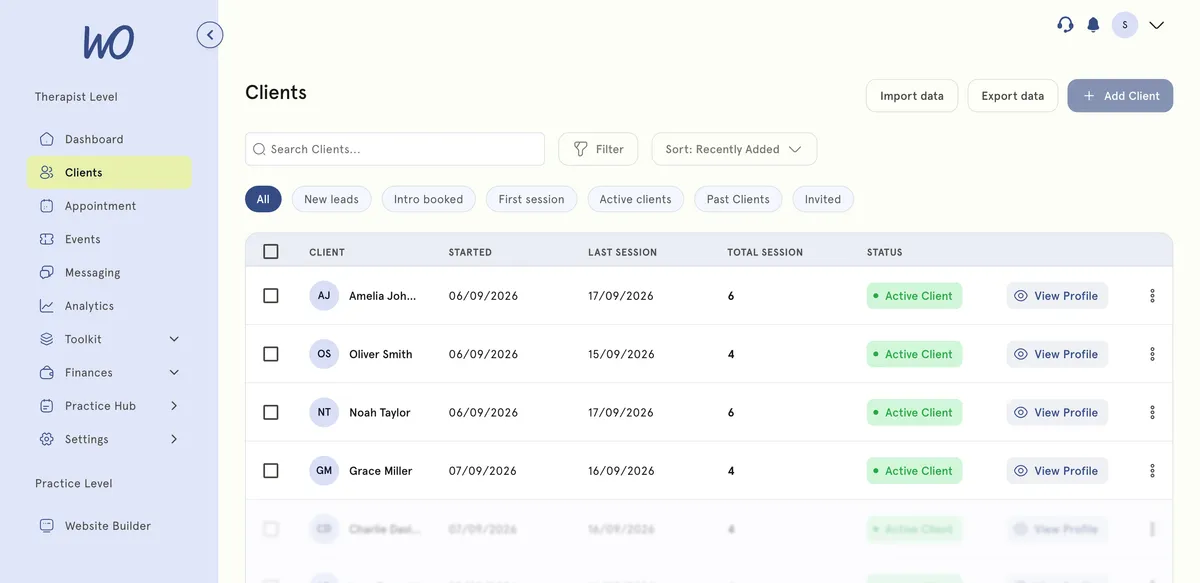
Invite one client by email — best when you want the client to set up their own portal account.
- In the sidebar, select Clients.
- Select Add Client. The Add a client window opens.
- Stay on the Invite via email tab.
- Type the address in Client email. You can add up to 10 addresses at once, separated by commas.
- Select Send invite.
Add a client by hand — best when you want the record now and don’t need them to accept anything first.
- Select Add Client, then choose the Add manually tab.
- Fill in First name, Last name and Client email.
- Select Save client.
Import clients from a CSV — best when you’re moving from another system.
-
On the Clients page, select Import data.
-
Prepare a CSV with these five columns. The window lists them too, and the headers are matched case-insensitively:
firstname lastname email dob sex John Smith john.smith@example.com 1990-05-15 male Sarah Johnson sarah.j@example.com 1985-12-03 female -
Select Click to select a CSV file, or drag the file into the box.
-
Check the preview. If anything is wrong, it’s listed under Validation errors by row number — fix those rows in your spreadsheet and select the file again.
-
Select Import.
There’s no template inside the app. Download a ready-made template with the right headers, or copy the table above into a new sheet and save it as CSV. Replace the example row with your clients before importing.
The columns, exactly
- firstname, lastname, email — all required. The email has to be a valid address.
- dob — required. Write it as YYYY-MM-DD, for example 1990-05-15.
- sex — required. Use male, female or other. Capitals don’t matter, and M or F also work.
Use YYYY-MM-DD even though other formats are accepted. The importer also reads dates with slashes, but it reads them month first — so 03/05/1990, meant as 3 May, is saved as 5 March, and nothing warns you.
Preparing the file
- Save as CSV (comma delimited), not .xlsx.
- Keep one header row at the top, then one row per client, with no blank rows in between.
- Don’t put commas inside a value — Smith, John breaks the row, because the importer splits every line on commas.
- If Excel keeps changing your dates, set the dob column to Text before you type them: right-click the column, choose Format Cells, then Text.
What happens next
- After an invite, you see Email invite sent. The client appears under the Invited filter until they accept.
- After adding by hand, you see New client added. The client gets a welcome email with a link to sign in to your client portal.
- Each imported client also gets that welcome email, and appears in your client list.
Good to know
- If an email address already belongs to one of your clients, adding them by hand shows This client is already in your list. An import skips them without saying so.
- After an import, the message counts the rows in your file, not the clients actually added. If some were already on your list, check the list itself to see who’s new.
- If you reach your plan’s client limit, you’ll be asked to upgrade.
Troubleshooting
My import shows Validation errors. Each error names its row. The usual causes: a header that isn’t exactly firstname, lastname, email, dob or sex; a blank dob or sex; a date that isn’t YYYY-MM-DD; or a comma inside a value.
The import said it worked, but some clients aren’t there. They were most likely already on your list — duplicates are skipped, and the success message counts every row in the file either way.
I can’t add any more clients. You’ve probably reached the 4-client limit on Freemium. Upgrading removes it.
A client didn’t get their invite. Ask them to check spam or junk. To send it again, open Clients, choose the Invited filter, open the menu on their row and select Resend invite.
Some birthdays are wrong after importing. They were probably written with slashes and read month first. Correct them in the client’s profile, and use YYYY-MM-DD next time.