
Before you start
- The client must already be in your client list.
- Your plan limits how many documents you can create: 1 on Freemium and 3 per billing period on Starter. Growth and Professional have no limit.
Steps
- Start from one of two places, which behave differently:
- From the client: open the client, go to the Documents tab and select Create document. This opens the Document Builder straight away, with the client already attached.
- From Toolkit → Documents: under Create a new document, choose Create with AI, Start with Template, Start from Scratch or Recent & Drafts. Here you attach the client yourself, with Add client at the top of the builder.
- Build the document. The Blocks panel on the right adds headings, paragraphs, lists, checklists and images, the input fields your client fills in, and the Signature and Consent Box blocks for signing.
- The MWO Document Assistant on the left can draft or review it for you.
- Edit the document, then select Send to Client.
- In Send Document to Client, check the Recipients.
- If you want, set a date under Expiry Settings. Turn on Auto-follow up and choose a number of reminders.
- If you want, add a note under Message (Optional).
- Select Send Document.
What happens next
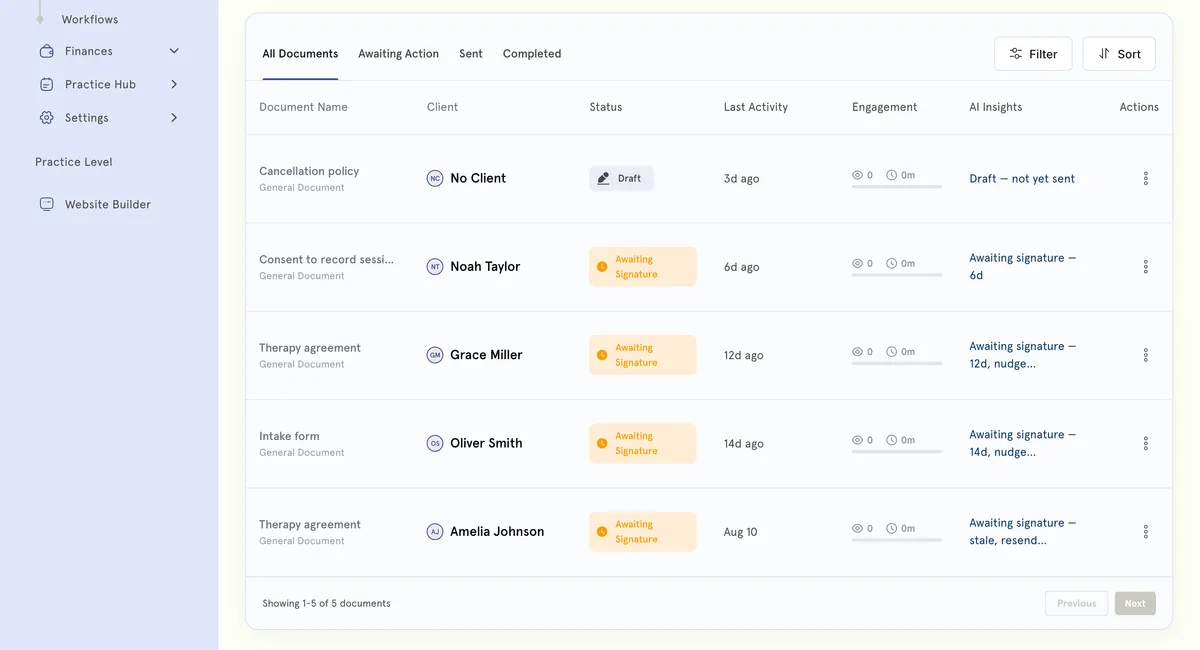
Each recipient gets an email with a link to the document. Your client opens it in their portal and signs it there. Track progress in the client’s Documents tab. The Status column shows Awaiting signature, Opened, Signed or Expired. On the main Documents page, see the Awaiting Signature and Completed (30d) cards.
Good to know
- With several signers, tick Sign in order. The next person is emailed only when the previous one finishes.
- To send again, open the document and select Resend. Recipients get a fresh link.
- Some documents show Request signature instead of Send to Client. Clinical records show no send button.
- From the row menu, choose View Document, Download PDF or Delete.
Troubleshooting
I don’t see Send to Client. Clinical records aren’t sent to clients, so they have no send button. Some other documents show Request signature instead.
My client says the link doesn’t work. Check whether the document has passed its expiry date. If it has, open it and select Resend to send a fresh link.
I’ve reached my document limit. You’ll see You’ve reached your document limit. On Starter the count resets when your next billing period starts. To create more now, upgrade on the Subscription page in Settings.