
Before you start
- You need the client’s email address.
- Invites count towards your client limit on the Freemium plan.
Steps
- In the sidebar, select Clients, then Add Client.
- On the Invite via email tab, enter the address in Client email.
- Select Send invite.
To manage invites, open the Invited filter on the Clients page:
- Select Resend to send the email again.
- Or use the row menu and choose Resend invite or Cancel invite.
What happens next
The client gets an email invitation. The link expires in 7 days. Clients you add by hand or import don’t need an invite. They get a Welcome to … client portal email with a Sign in to your portal button. That link also expires in 7 days. Clients sign in with an emailed link and a code, so they don’t need a password.
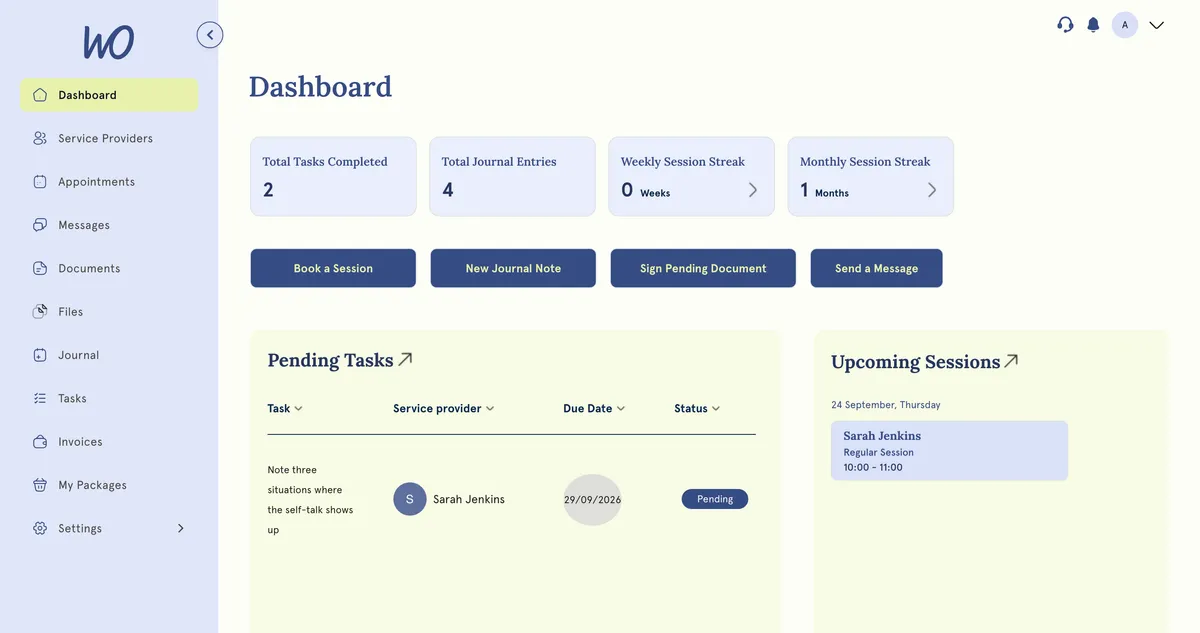
In their portal, clients see Dashboard, Service Providers, Appointments, Messages, Documents, Files, Journal, Tasks, Invoices and My Packages.
Good to know
- The Invited list shows when you invited each person and how many times you resent it.
- An email that belongs to a practitioner account can’t be added as a client.
- You can’t open the client portal while signed in as a practitioner.
Troubleshooting
The client says their invite link has expired. Invite links last 7 days. Open Clients, choose the Invited filter and select Resend on their row. They get a new link, valid for another 7 days.
You get an error that the email is already in use. That address is probably already a practitioner account on MyWellOps. Ask the client for a different address.
How do I know they’ve accepted? Once they sign in, they leave the Invited list and appear with your other clients under All and Active clients.