
Before you start
- To give a client a task, they need to be on your client list. They’ll see it in their portal.
Steps
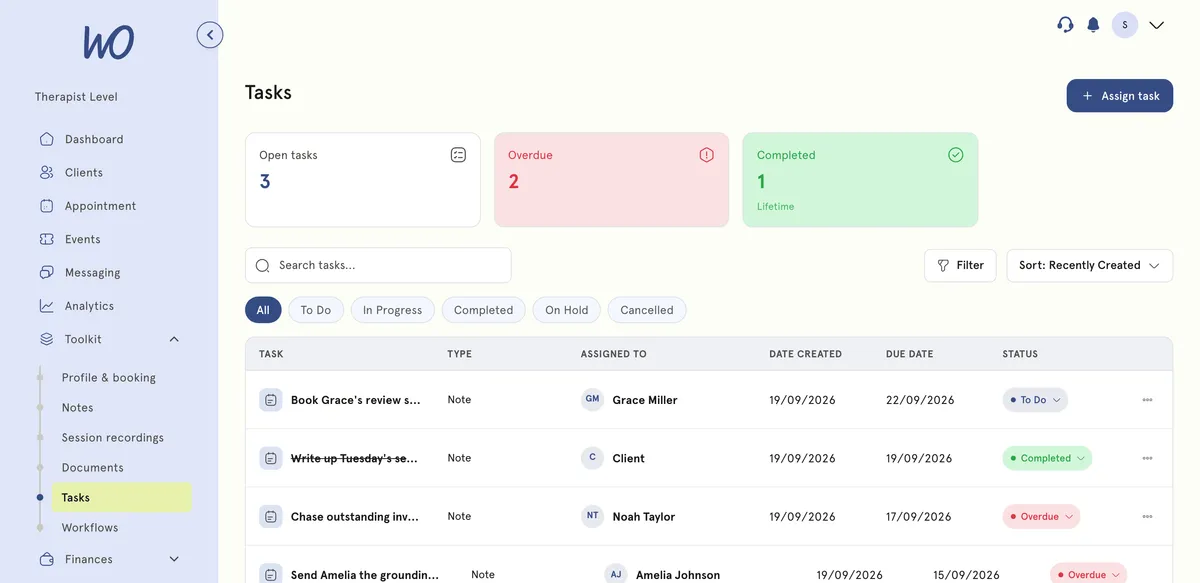
- In the sidebar, open Toolkit and select Tasks. The cards at the top show your Open tasks, what’s Overdue and what’s completed.
- Select Assign task. The Assign new task window opens.
- Choose who it’s for:
- Client — for homework, forms or reading between sessions. Pick them under Add client.
- Practitioner — a task for yourself.
- Enter a Task title, set a status (it starts as To Do) and a Due date.
- Add a description with any instructions.
- Optionally attach an action, so the client can act on it from the task itself:
- Share a document — from your documents, or upload a file.
- Request a document from the client — say what they should upload.
- Link to a resource — an article, video or website.
- Checklist steps — a list for them to work through.
- Attach a questionnaire.
- Assign the task.
What happens next
The task appears in your list. Client tasks also appear in that client’s portal. Move it through In Progress to Completed as it’s done.
Finding tasks
- Filter by All, To Do, In Progress, Completed, On Hold or Cancelled.
- Search tasks finds one by title or client.
- The sort menu starts on Recently Created. Sort by due date to see what’s next.
Good to know
- Check the Overdue card daily. It’s the tasks past their due date and not yet done.
- Tasks for Practitioner are for you. Assigning to other team members isn’t available yet.
Troubleshooting
A client can’t see a task. They need to have signed in to their portal. Tasks appear there, not by email.
I made a task by mistake. Delete it, or set it to Cancelled if you’d rather keep a record.