
Before you start
- Workflows don’t send anything yet. Every line in the activity log is what a workflow would have done. Nothing in it reached a client. See Get started with workflows.
- Only Active workflows are checked for new matches.
Steps
- In the sidebar, open Toolkit and select Workflows.
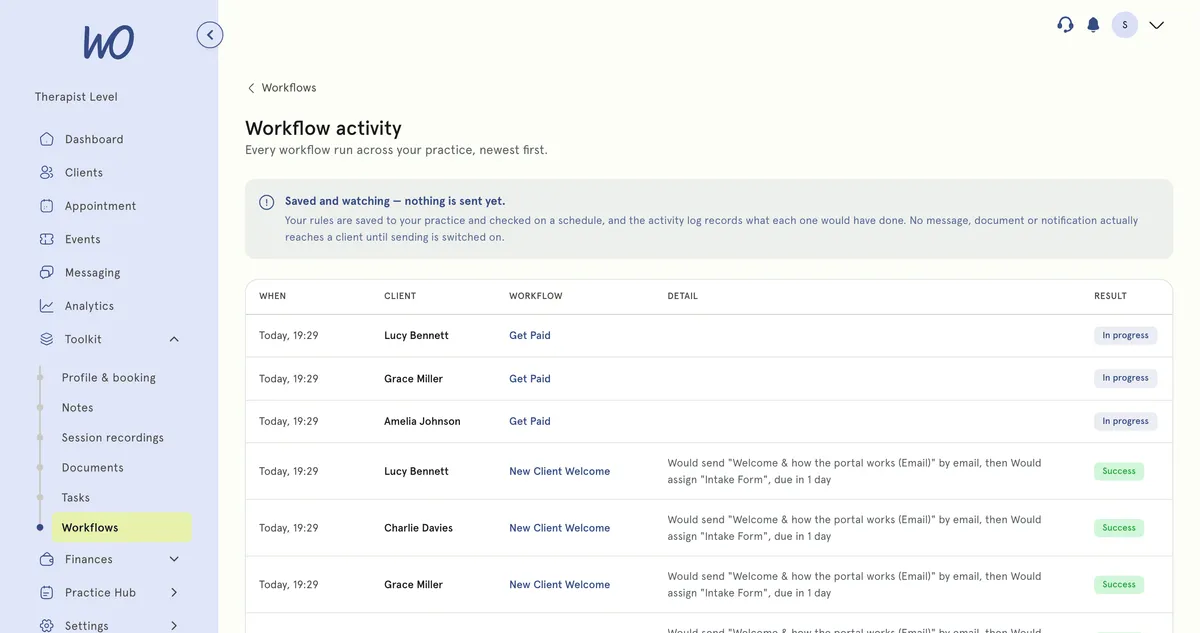
- Select Activity log. The Workflow activity page lists every workflow run across your practice, newest first.
- Each row shows:
- When — when it ran
- Client — who it was about, if anyone
- Workflow — which workflow ran
- Detail — what it did or would have done
- Result — Success, In progress, Skipped or Failed
See one workflow’s activity Open the workflow from the list and select Runs at the top. Select Back to workflow to return to it.
See a quick count In the workflow list, each workflow shows its total runs and any failures, such as 5 runs · 1 failed.
What the results mean
- Success — every step was worked through. The detail says what would have happened, for example: Would send 24-hour reminder (Email) by email, then Would assign Intake Form, due in 1 day.
- In progress — the workflow has matched and is still working through its steps, often because it’s on a Wait before next step. The detail fills in when it finishes.
- Skipped — none of the steps went ahead. Usually an ONLY IF check at the start wasn’t true — the detail says which, such as Stopped because … was not true — or no step could be carried out as set up. If a check stops the workflow partway, after earlier steps have gone ahead, the result is still Success and the detail ends with how many steps were skipped.
- Failed — a step went wrong and was retried without success. The detail says where it stopped, for example Stopped at step 2: ….
Parts of a detail you might see:
- Checked: … — an ONLY IF check passed.
- Waited 2 days — a wait step finished.
- Branch skipped — … was not true — an IF branch didn’t apply, and the workflow carried on.
- … steps skipped — some steps were skipped, with the first reason.
Good to know
- The log shows your latest 100 runs.
- If you delete a workflow, its runs stay, labelled Deleted workflow.
- Client is blank for Every morning (scheduled) workflows, because they’re about the day rather than a person.
- There’s no step-by-step trace, retry, replay or test run.
Troubleshooting
The log says No runs recorded yet. None of your Active workflows has matched anything so far. Workflows are checked every 15 minutes. Check the workflow is switched on, and that its trigger and conditions fit something that has happened.
A Send a message step shows No template matches …. Workflows don’t recognise your practice’s own messages yet, only the ones that come with templates, so the step was skipped. To have the log show what it would send, use a workflow template’s message. Nothing is sent either way at the moment.
A run says Stopped: Could not check …. The workflow was asked to check something it didn’t have information about for that event, so it stopped rather than guess. Change or remove that check. See Create or edit a workflow.