
Before you start
- Workflows don’t send anything yet. A workflow made from a template is checked on a schedule and records what it would have done, but nothing reaches a client. See Get started with workflows.
- Templates are written for a typical practice. They name documents and messages you may not have, so plan to change some steps.
Steps
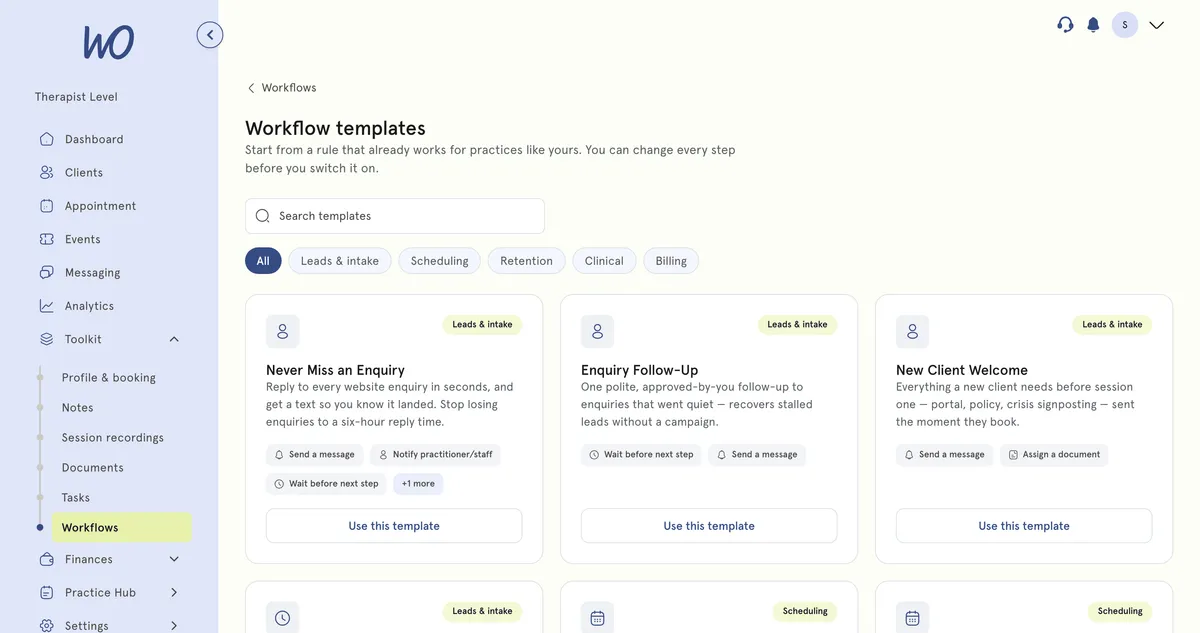
- In the sidebar, open Toolkit and select Workflows. Select Browse templates.
- On Workflow templates, type in Search templates or choose a category: All, Leads & intake, Scheduling, Retention, Clinical or Billing.
- Each card shows the template’s category, name, description and first few steps. Select Use this template.
- The builder opens with the template filled in, as a Draft. It isn’t saved yet.
- Check every step. A document marked (unavailable) is one your practice doesn’t have — pick one of yours instead. Leave the template’s messages as they are, even though they’re marked (unavailable) too.
- Change the name, trigger, conditions or steps as you like. See Create or edit a workflow.
- Turn on Active if you want it checked straight away, then select Save.
The templates
- Leads & intake: Never Miss an Enquiry, Enquiry Follow-Up, New Client Welcome, Intake Chase
- Scheduling: Appointment Reminders, First Session Prep, Cancellations & No-Shows, The Daily Brief, Post-Booking Form
- Retention: Keep Them Booked, Early Dropout Watch, Win Back
- Clinical: Homework Nudge, Notes on Time, Paperwork & Compliance, Progress Reviews, Post-Session Report
- Billing: Get Paid, Package Renewal
What happens next
- Once saved, it’s an ordinary workflow in your list. You can edit, pause or delete it like any other.
- If it’s Active, its matches appear in the activity log with what each step would have done. See Check workflow activity.
Good to know
- The template descriptions say what each workflow is meant to do once sending is available. Today, they record what they would have done and send nothing.
- Appointment Reminders covers the same ground as the reminders MyWellOps already sends. Those built-in reminders are set up separately and keep working — see Set up email reminders.
- Deleting a workflow you made from a template doesn’t change the template. You can use it again.
- There’s no test or manual run.
- A template’s messages show (unavailable) because they aren’t named the same as your own messages. Keep them anyway: workflows only recognise the template’s message names for now. If you pick one of your own, that step is skipped, and the activity log says No template matches ….
Troubleshooting
A step shows (unavailable). If it’s a document, your practice doesn’t have one by that name. Choose one of your own from the list. If the document list is empty, add the document under Toolkit → Documents first.
If it’s a message, leave it as it is. Workflows recognise the template’s message names, not your own, for now.
Save shows This workflow isn’t ready to save:. Fix each item in the list. Most often it’s an empty number field or a condition that doesn’t work with the trigger. See Create or edit a workflow.
I can’t find a template. Choose All and clear the search. If you see No templates match that search., try a shorter word.