
Before you start
- Your client must have joined MyWellOps. If they haven’t, you’ll see “This client hasn’t joined yet, so they can’t be messaged.”
- Only you can start a conversation. Clients can’t start one themselves.
Steps
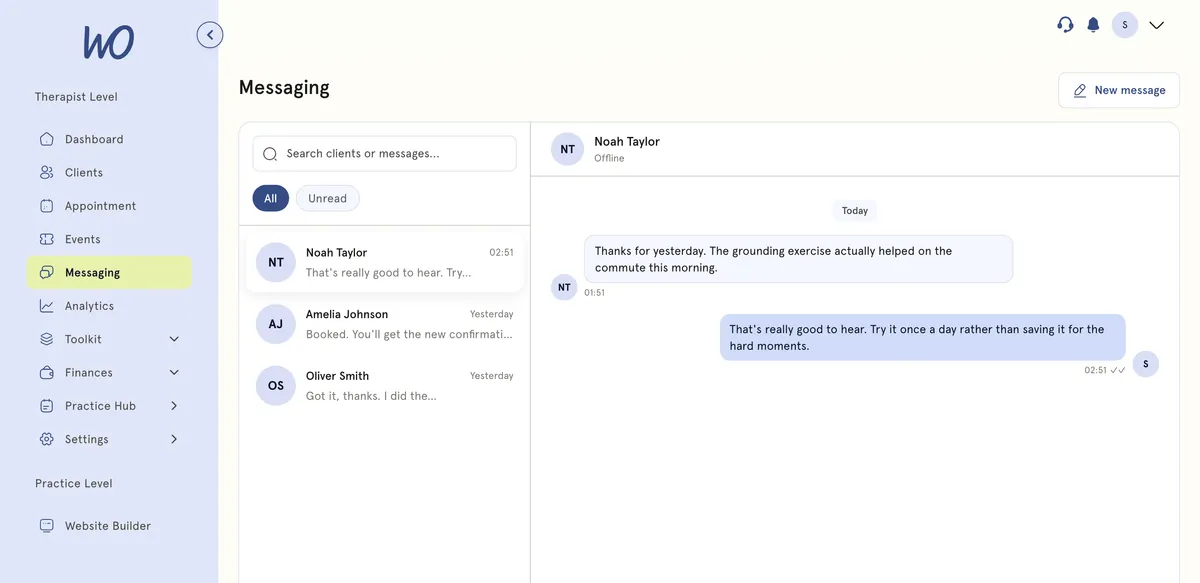
- In the sidebar, select Messaging.
- Select New message. Pick a client to start a conversation opens.
- Search for your client in Search clients… and select their name.
- Select Start chat.
- Type in the Type your message box. Press Enter, or select the send button, to send. Press Shift and Enter together for a new line.
To go back to a chat, select it from the list. Use All or Unread to filter the list, or use Search clients or messages….
On a client’s profile, Message takes you to the Messaging page.
Send an image
- In a chat, select the image button.
- Choose one image file, such as JPG, PNG or GIF, up to 5MB.
- Wait for the upload to finish, then send.
You can send one image at a time. Only images can be attached. Clients can’t attach images from their messages screen.
What happens next
Messages appear straight away for both of you. Under your client’s name you’ll see Active now, Offline or typing. Green double ticks (✓✓) show that your client has read your message.
Good to know
- Conversations with new messages appear under the Unread filter.
- Use the emoji button to add an emoji.
Troubleshooting
I see This client hasn’t joined yet. They haven’t accepted their portal invite. Go to Clients, choose the Invited filter, open the menu on their row and select Resend invite.
My image won’t upload. It must be an image file under 5MB. If you’ve already added one, send it before adding the next — you’ll see “Please send the current image before uploading a new one”.