
Before you start
- Workflows don’t send anything yet. A workflow is saved to your practice and checked on a schedule, and the activity log records what it would have done. No message, document, task or notification reaches a client or a colleague. The app says the same in the banner at the top: Saved and watching — nothing is sent yet.
- Your booking confirmations and email and SMS reminders are separate from Workflows and keep working as before.
Steps
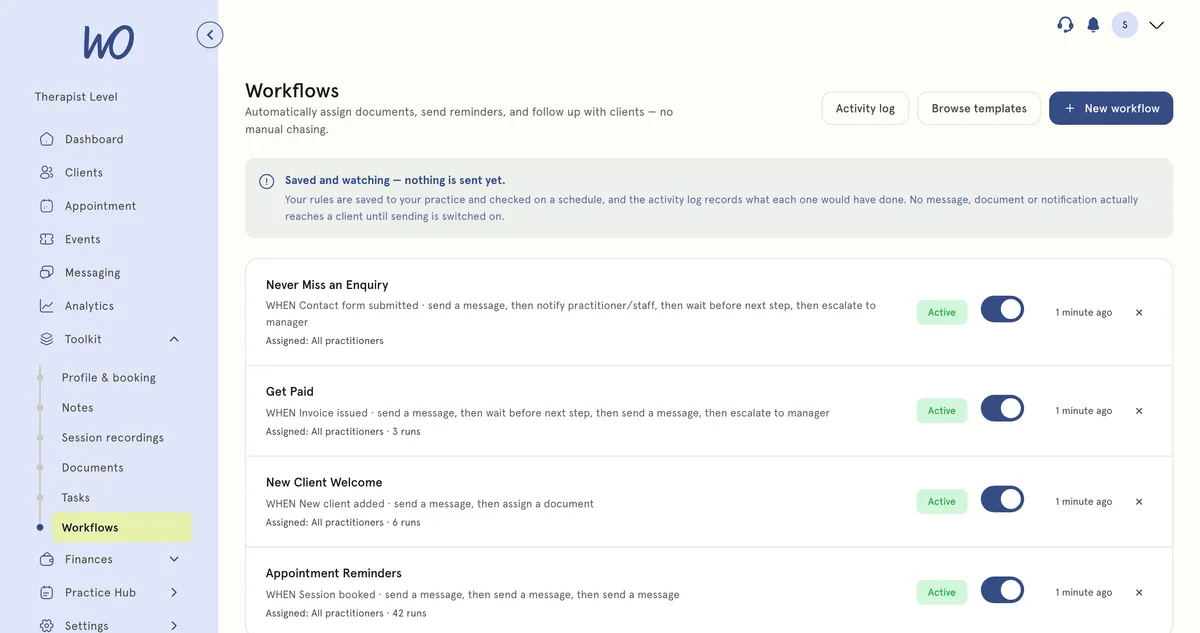
- In the sidebar, open Toolkit and select Workflows.
- The first time, before you have any workflows, a window called Automate the busywork opens. Select Start building to make one from scratch, or Browse templates instead.
- The list shows each workflow with:
- its name
- a line starting WHEN that sums up its trigger and steps
- Assigned: and, once it has matched something, how many runs it has, such as 5 runs · 1 failed
- its status: Active, Paused or Draft
- when it was last changed
- Select a workflow’s name to open and edit it.
Switch a workflow on or pause it Use the switch on its row. A message confirms the workflow is now active, or paused. Only Active workflows are checked. A new workflow is a Draft until you switch it on.
Delete a workflow Select × at the end of its row, or open it and select Delete workflow at the bottom. Confirm with Delete workflow. It stops being checked straight away, and its past runs stay in the activity log.
Make a new one Select New workflow to build one yourself — see Create or edit a workflow. Select Browse templates to start from a ready-made one — see Start a workflow from a template.
What workflows do today
Each workflow is a rule you read top to bottom: WHEN something happens, IF certain things are true, THEN take these steps in order.
For every Active workflow, MyWellOps:
- looks every 15 minutes for events that match its trigger, such as a new booking or an overdue invoice
- checks its conditions against that event
- works through its steps, and writes what each step would have done to the activity log — for example, Would send 24-hour reminder (Email) by email
That’s where it stops. Nothing is sent, assigned or created.
What happens next
- Once a workflow is Active, matches start to appear in Activity log within about 15 minutes of the event. See Check workflow activity.
- When you switch a workflow on, it can also pick up matching events from up to two days before.
Good to know
- There’s no test or manual run. The activity log is the way to see how a workflow behaves.
- A deleted workflow can’t be restored in the app. Its runs stay in the log, labelled Deleted workflow.
- Assigned: doesn’t change what a workflow picks up yet. Every workflow checks everything in your practice.
- To change the emails and texts clients actually get, see Set up email reminders and Set up SMS appointment reminders.
Troubleshooting
I switched a workflow on and nothing was sent. That’s expected. Workflows don’t send anything yet. Open Activity log to see what it would have done.
My workflow is Active but the activity log is empty. Nothing has matched it yet. Workflows are checked every 15 minutes, and only events that fit the trigger and every condition count. An Every morning (scheduled) workflow runs once a day, from 6am in your practice’s time zone.
The switch flicked back. The change didn’t save, and you’ll see Couldn’t change that workflow’s status. Refresh the page and try again.