
Before you start
- Reminders go out for upcoming sessions booked in MyWellOps.
- Each client decides whether they get reminder emails. See Make sure clients receive them below.
Steps
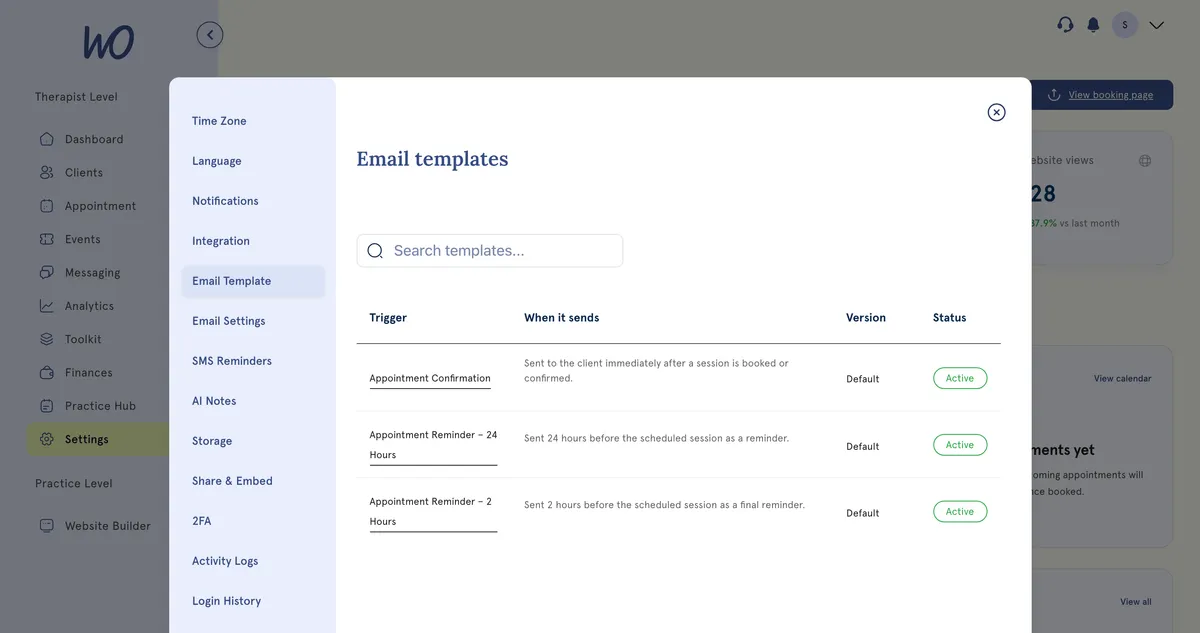
- Open Settings and select Email Template.
- Find Appointment Reminder – 24 Hours or Appointment Reminder – 2 Hours. Use Search templates… to narrow the list.
- Select the template to open it.
- Edit the Subject and the message. To add a detail such as the client’s name or the session time, select Add parameters and choose one — for example
{{client.first_name}}or{{appointment.time}}. - Select Preview Email to check it, then SAVE.
Turn a reminder off In the template list, select its status. Active templates send; select it again to make it inactive, and that email stops.
Start again Open the template and select Reset Default Email to go back to the original wording.
Make sure clients receive them
Reminder emails only go to clients who have switched them on. In their client portal settings, a client opens Notifications and turns on Session Reminders under Email Alerts. It’s off until they do, and you can’t change it for them.
When you invite a client, it’s worth asking them to turn it on.
What happens next
- About 24 hours before each session, the client gets the 24-hour reminder. About 2 hours before, they get the 2-hour one.
- Each reminder is sent once per session. For a video session, it can include the join link.
Good to know
- Reminder emails don’t use SMS credits. For text reminders, see Set up SMS reminders.
- The reminder times are fixed at 24 hours and 2 hours. For a different time, message your client yourself.
- The same Email Template list holds your other client emails, such as booking confirmations and invoices, and you edit them the same way.
Troubleshooting
A client isn’t getting reminders. First, check they’ve turned on Session Reminders under Email Alerts in their portal settings. Then check the template is Active, that their email address is right on their profile, and ask them to look in spam or junk.
A reminder came through with a blank or wrong detail.
Open the template and check each {{…}} tag was added from Add parameters rather than typed. If it still looks wrong, select Reset Default Email.