
Before you start
- Add at least one service. Until you do, the page can’t show how many slots you can offer, and Daily capacity says Add a service to set your daily capacity.
Steps
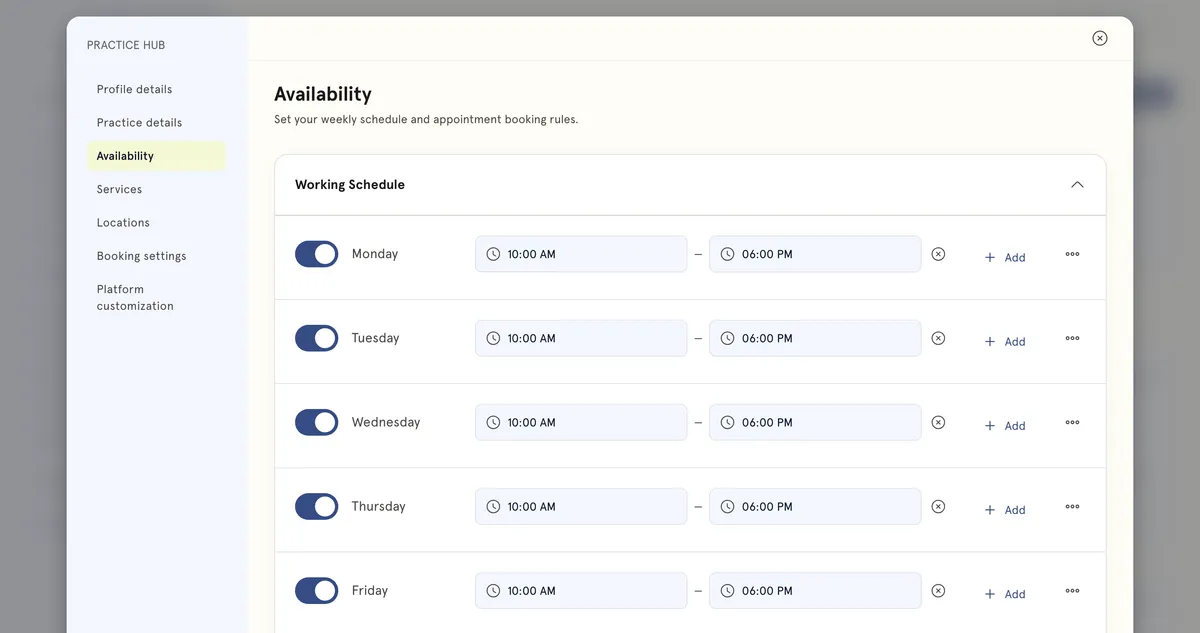
- In the sidebar, select Practice Hub. Then select Availability in the menu on the left.
- Under Working Schedule, turn on the switch next to each day you work. Days that are off show Unavailable.
- Set the start and end times. Times are shown as 09:00 AM and 05:00 PM.
- To add another block of time on the same day, such as an afternoon session, select Add. The circle button at the end of a row removes that block.
- To reuse one day’s hours, open the three-dot menu next to that day. Choose Copy to all days or Copy to weekdays. Clear day removes all hours for that day.
- Under Appointment Settings, set what you need:
- Notice time — how much notice you need before a session, in hours. Clients can’t book a time closer than that.
- Future availability — how far ahead clients can book, in days.
- Buffer time — the gap you need between sessions, in minutes.
- Daily capacity — how many bookings a day you will take. The line beneath tells you the most that fits your hours.
- Default session duration — the length applied to new appointments.
- Cancellation window — how close to a session a client can cancel without penalty, in hours.
- Set the Time zone. Your hours are read in it, and it starts out empty (Select a timezone).
- Select Save changes in the bar at the bottom. Until you do, it says Not saved yet.
What happens next
Clients are offered times inside your working hours. Days that are switched off show as Unavailable. Once you have hours and at least one service, an Estimated booking capacity note shows roughly how many hours you can offer over the coming days.
Good to know
- If two blocks on the same day overlap, you’ll see Overlapping time slots detected. You can’t save until you fix it.
- Save changes stays greyed out until you change something.
- The cancellation window is shown to you while booking: the When & where? step of a new booking says free cancellation up to that many hours before, and a fee after.
- Buffer time on this page only applies to services with no Buffer after set. For most services, set the gap on the service itself.
- To limit how many bookings you take each day, see Add travel time and set booking limits.
Choosing your settings. A buffer covers note-writing, a break and room turnover, so 10 to 15 minutes is a common minimum. Set notice time long enough to prepare for a new client.