
Before you start
- Set your working hours first (Set your working hours and availability). A service with no hours behind it can’t be booked.
- For sessions at your own premises, you need a saved location. You can add one while you create the service.
Steps
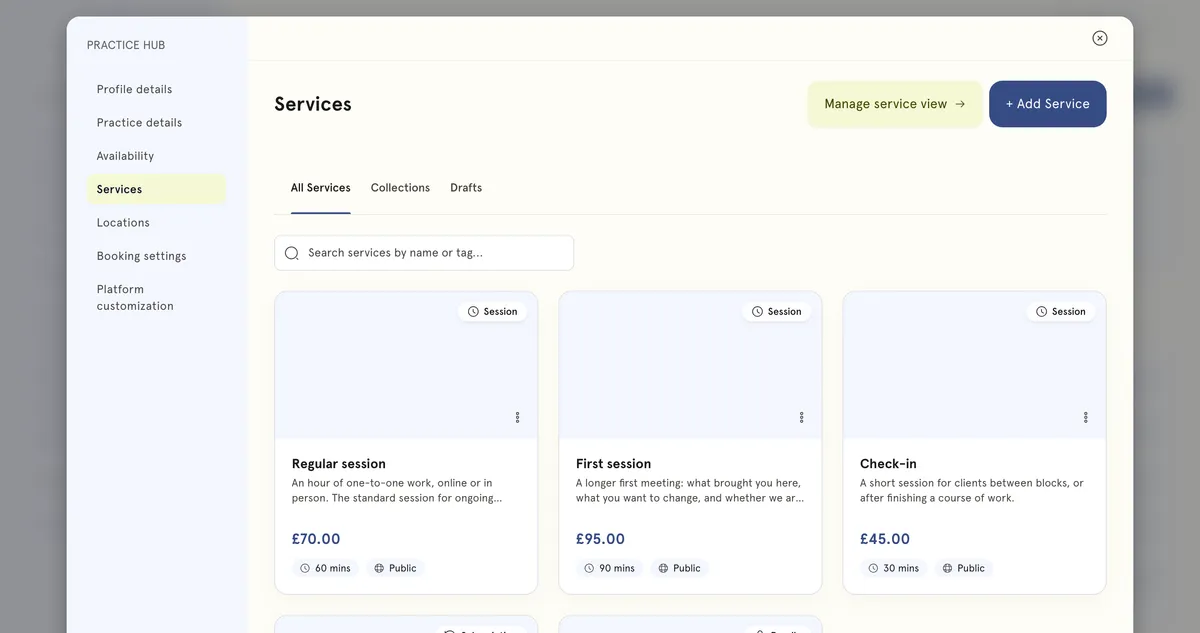
- In the sidebar, select Practice Hub, then Services.
- Select + Add Service.
- Under What would you like to create?, choose Single Session, Bundle or Subscription. Then select Continue. If you’re not sure, start with a single session.
- Basic info. Enter a Service title. Under Cover & description you can add a cover photo (PNG or JPG, up to 5MB, 16:9), a Short description of up to 140 characters, a Long description and a gallery.
- Visibility. Under Who can find this, choose Public, Private or Hidden.
- Format & scheduling. Under Where & how long, tick every way you offer the service under How you offer this: Online, At the client’s address, or one of your saved locations. Clients pick one when they book. Select Add a location to add a new one. Online shows Automatic meeting link — a unique link is made and sent to the client when they book.
- Set the Duration. You can also set a Booking notice, and a Buffer before and Buffer after. Bundles have Each session duration and a Number of sessions instead.
- Pricing. Under What clients pay, set Payment type to Free or Paid. For a paid service, choose a Currency, enter the price, and turn on Price includes tax if your price already covers it. Subscriptions also have a Billing cycle.
- Billing policies. Use practice default policies is on by default. Leave it on unless this service needs different refund or cancellation terms.
- Tags & categories. Optionally add tags under Help clients find this. They show up in search and category filters.
- Select Publish at the top. In Select a collection, tick any collections you want, then select Publish. Save draft keeps it without publishing, and the page says Not saved yet until you do one or the other.
What happens next
You’ll see Service published and return to your services list. What clients see depends on visibility:
- Public: anyone can find and book it on your profile.
- Private: only people with the share link can book.
- Hidden: only you can see it, and it can’t be booked.
Good to know
- Durations go up to 120 minutes, in 5-minute steps.
- A Long description must be at least 50 characters if you add one.
- For bundles, Validity (days) is how long clients have to use their sessions. Leave it empty for no expiry.
- Subscriptions don’t have format or duration settings.
- Booking rules has Min participants and Max participants, but they don’t change how booking works yet. Each booking is still for one client, so don’t rely on them to run a group session.
- To change visibility later, open the service’s menu and choose Make public, Make private or Hide.
- Drafts are listed under the Drafts tab.
Troubleshooting
I can’t publish. Check the service has a title and a duration, and that at least one option is ticked under How you offer this.
It isn’t showing on my booking page. Check it’s Public, and that you selected Publish rather than Save draft.
Clients can’t book it. Check your working hours in Practice Hub → Availability, and that the booking notice isn’t so long it rules out the times you have free.
I need to change it after publishing. Open it from Practice Hub → Services, make your changes and select Update.