September offer: 70% off your first 6 months on any paid plan. Sign up by 30 September 2026.

Start free trialTerms
MyWellOps home

Choose the order clients see your services in

Feature up to six services at the top of your booking page, pin the ones that matter, and drag the rest into order.

In the app

Practice HubServicesManage service view

Reading time

About 1 min

Steps

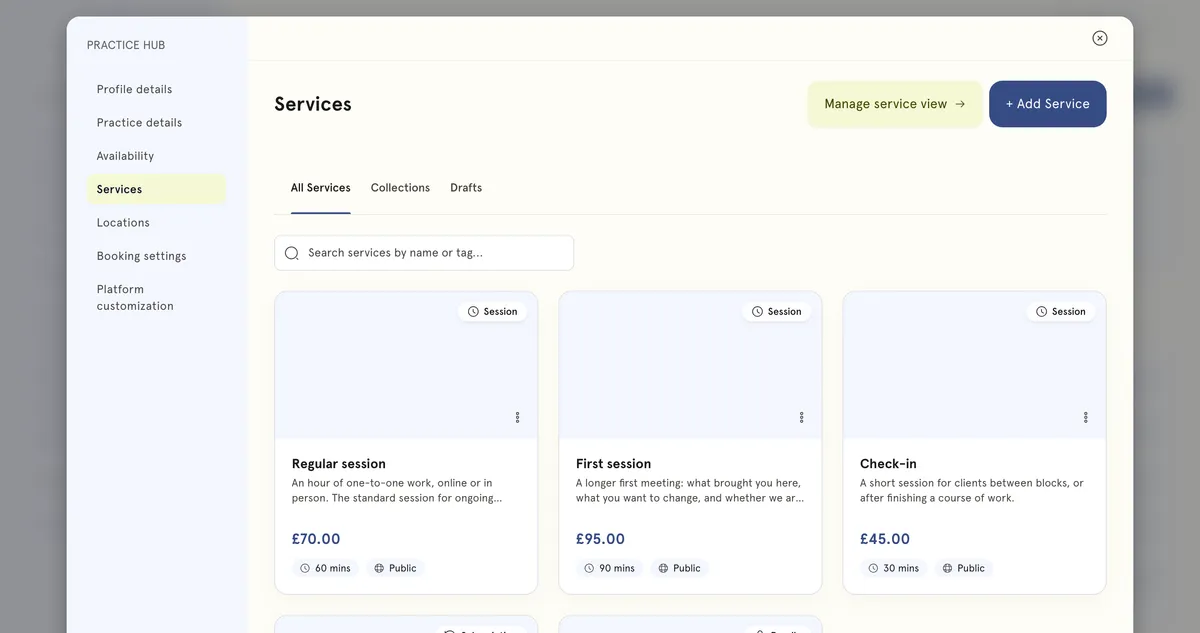
The Services screen in Practice Hub: three session types at £70, £95 and £45 with their length and public visibility, above a subscription and a six-session bundle.
Your services in Practice Hub, in the order clients see them.
  1. In the sidebar, select Practice Hub, then Services.
  2. Select Manage service view.
  3. Drag services into the order you want. There are two groups:
    • Featured — up to six services, shown first.
    • Everything else, below them.
  4. Drag a service between the groups to feature it or take it out, or use its More actions menu: Add to featured or Remove from featured.
  5. To keep a service in place, use Pin service. Unpin service releases it.
  6. Select Save Order. Nothing changes until you do.

Good to know

  • Put your introductory or most-booked services at the top. It’s the first thing clients see.
  • Editing, archiving and deleting a service happen on the service itself, not on this screen.

Still need help?

If something here doesn't match what you see, or you're stuck on a step, our support team can help.

Email us

Write to support@mywellops.com and tell us what you need.

Send an email

Start a chat

Chat with our support team right here. You don't need to sign in.

Spotted something wrong in this guide? Tell us by email or chat and we'll fix it. New to MyWellOps? Book a demo.

Spend less time on admin, more time with clients

Start free. Cancel anytime, and your data comes with you if you leave.

Would rather be shown? Book a 20-minute demo

  • Free 1-on-1 onboarding
  • 7-day free trial
  • Cancel anytime