
Before you start
- The event needs to be published to take bookings.
- Refunds go back through Stripe to the card the attendee paid with.
Steps
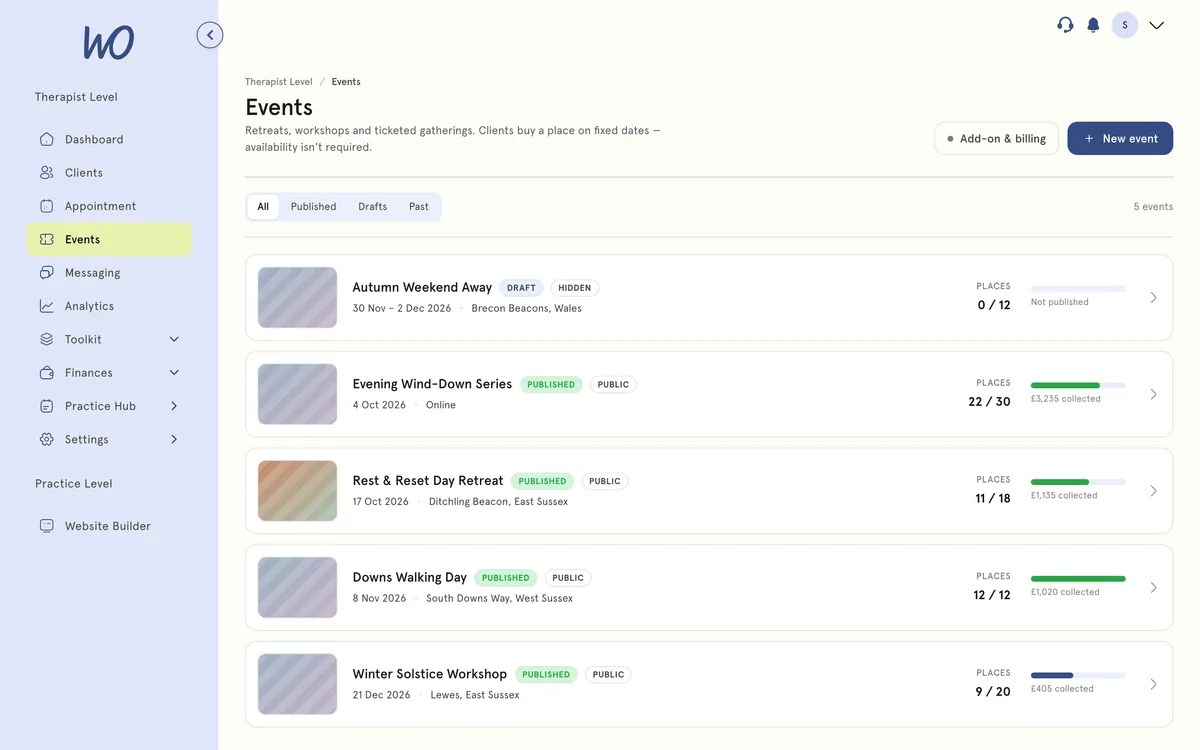
Check how an event is doing
- In the sidebar, select Events, then select the event.
- The cards at the top show:
- Places sold, out of your capacity, with how many are on the waitlist.
- Gross collected, with the number of bookings.
- Deposits outstanding. This is the total of balances still to be paid, with the next due date.
- Net payout, after your plan’s platform fee.
- Below is the Attendees list, with each person’s tier, places, what they’ve paid and their status. Payout breakdown on the right shows Gross collected, Refunded, MWO fee and Net to you.
Add an attendee by hand
- Above the list, select Add attendee.
- Enter First name, Last name and Email. Phone (optional) can be left blank.
- Choose a Tier, or No tier. Choosing a tier fills in Paid (offline) with its price for the number of places.
- Set Places and check Paid (offline). Enter 0 for a free place.
- Add a Note (private) if you want, such as how they paid.
- Leave Email them a confirmation ticked to send them the booking confirmation.
- Select Add attendee.
Re-send a balance link
- In the list, find the booking and select the ⋯ menu.
- Select Re-send balance link. You’ll see Balance link sent to and their email address.
Cancel one booking
- Select the ⋯ menu on the booking, then Cancel booking.
- Check the message, then select Cancel booking to confirm. Select Keep booking to go back.
Export the attendee list Select CSV at the top of the page, or Export full list (CSV) under the list. The file includes each booking’s reference, contact details, tier, places, extras, status, amounts paid and due, refunds and booking date.
Cancel the whole event
- At the top of the page, select Cancel event.
- Under How should attendees be refunded?, choose:
- Follow each booking’s policy. Refunds follow your refund policy, and balances not yet paid are cancelled.
- Refund everyone in full. Every payment is refunded, deposits included.
- Don’t refund. Attendees are told, and you handle any refunds yourself.
- Read What happens. It shows the total that will be refunded.
- Select Cancel event & refund to confirm. This can’t be undone.
What happens next
- One booking cancelled. It shows as Cancelled. The attendee is emailed, with the refund amount if there is one. Their place is freed and offered to the next person on the waitlist.
- Event cancelled. You’ll see Event cancelled with how many attendees were emailed and how much is being refunded. The event moves to Cancelled and is hidden from your booking page and website. Anyone mid-checkout loses their hold, and the waitlist is closed.
- Attendee added by hand. They show as Paid and take up places like any other booking. If the place has a price, an invoice is raised and the amount you entered is recorded as paid.
How the numbers are worked out
- Places sold counts places on bookings that are paid, on a deposit, overdue or waiting for review. It also counts places held by someone who’s checking out right now. A checkout hold lasts 10 minutes.
- Gross collected is the money received on those same bookings. Money from cancelled or released bookings isn’t included, even if you kept some of it.
- Net payout is Gross collected, less refunds and the MWO fee. Stripe’s own fee is taken separately in your Stripe balance.
- Refunds you issue straight from Stripe are picked up and shown under Refunded.
The waitlist
- When an event is full, the event page shows Join the waitlist. People give their name and email. They see You’re not charged unless you claim a place.
- When a place frees up, the first person in the queue is emailed. They have 24 hours to claim it with Claim my place. If they don’t, it’s offered to the next person.
- A place frees up when you cancel a booking, when a balance goes unpaid past your rule, or when someone doesn’t finish checking out.
- The dashboard shows how many people are waiting, but not their names.
Emails that go out
These go out by themselves. You’ll find them with your other emails under Settings → Email Template, where you can edit the wording or turn one off. See Set up email reminders for how the editor works.
- Event Booking Confirmed, when a place is booked or you add someone and tick the confirmation box.
- New Event Booking – Practitioner, sent to you when someone books online.
- Event Balance Reminder, 7 days and 1 day before a balance is due, and when you re-send the link.
- Event Balance Overdue, daily through the grace period.
- Event Balance Received, when the balance is paid.
- Event Booking Cancelled, when you cancel their booking.
- Event Place Released, when an unpaid balance passes your grace period.
- Event Cancelled by Host, when you cancel the event.
- Event Waitlist Joined and Event Waitlist – Place Available, for the waitlist.
Good to know
- Stripe’s fees and the MWO platform fee aren’t returned when you refund.
- Money an attendee paid you offline can’t be refunded through MyWellOps. Refund it yourself.
- You can’t edit an attendee’s details after they’ve booked. To correct an email address, cancel the booking and add them again by hand.
- Re-send balance link only appears on bookings with a balance still to pay. Cancelled and released bookings have no menu.
Troubleshooting
I see “The booking is cancelled but the refund … failed — issue it from Stripe.” The booking is cancelled, but Stripe didn’t return the money. Issue the refund from your Stripe dashboard. It then shows under Refunded.
After cancelling the event, some refunds failed. The confirmation says how many. Handle those from Stripe.
I see Couldn’t export the attendee list. Refresh the page and try again. Check your browser isn’t blocking downloads.
There’s no Unpublish button. Places have sold. Cancel the event instead so attendees are told and refunded.
I selected Keep event and ended up on the Events list. That’s expected. The event isn’t cancelled. Select it again to carry on.