
Before you start
- Events are part of the Retreats & Events add-on. It’s sold on paid plans only.
- Have your dates and times, the venue address or how you’ll meet online, and how many places you’re selling.
Steps
Turn on Retreats & Events
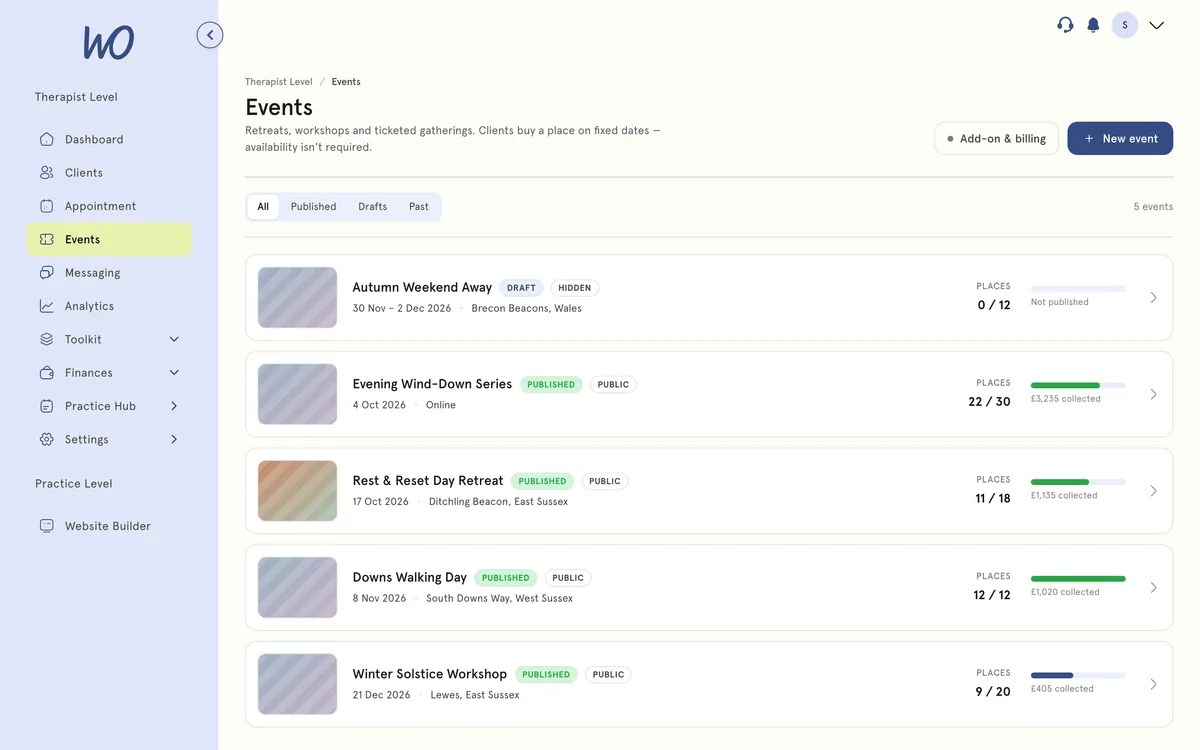
- In the sidebar, select Events. If you see your events list and a New event button, it’s already on. Skip to the next part.
- If you see a promotion instead, select the button on it:
- Start your 7-day free trial or Turn on Retreats & Events adds the add-on to your plan. It’s charged to the card on your MyWellOps account. If there’s no card, or it’s declined, a window asks for one.
- Upgrade to a paid plan appears on the free plan. Change your plan first, then come back.
- When you see Your 7-day free trial has started or Retreats & Events is on, select Create your first event.
Create the event
- On Events, select New event.
- Add a Cover image if you want one.
- Enter a Title (up to 160 characters) and a Description.
- Under Format & location, choose one:
- In person. Search for the venue, address or postcode, pick a result, then edit the address box if you need to.
- Online. Choose MyWellOps video and a room is created for you. Or choose Another platform and paste your Zoom, Teams or Meet link.
- Under Dates & time, set Starts and Ends, then check the Timezone.
- On the right, set Capacity (the total number of places) and Max places per booking.
- Under Visibility, choose Public to list the event, or Unlisted so only people with the link can find it.
- Under Where it’s listed, turn Booking page and My website on or off.
- Select Save draft. Or select Continue to Payments & plans to set prices now. See Price and publish an event.
How saving works
- The first save needs a title. Without one you’ll see Give the event a title before saving.
- Once the draft is saved, your changes save by themselves about two seconds after you stop typing. The save status shows next to Save draft.
- Moving to Payments & plans also saves.
- A draft isn’t visible to anyone until you publish it.
Where your event appears
Once it’s published:
- Booking page. A Public event with Booking page on shows under Upcoming events on your booking page. Three are shown, with See all events if you have more.
- Your website. A Public event with My website on shows in the Events block of your practice website. If your site doesn’t have the block yet, the event editor shows a link to add it, and the Website Builder opens with the block added. See Build and publish your practice website.
- Unlisted. It isn’t listed anywhere. Share its link from the event’s page with Copy link.
Events drop off these lists once they’ve finished.
Manage the add-on
- On Events, select the add-on button next to New event. It reads Add-on active, Add-on ending or Add-on & billing.
- The page shows the price, your trial end date or next invoice, and the status.
- To stop it, select Cancel trial or Cancel add-on, then confirm.
If you cancel during the free trial, nothing is charged. After the trial, cancelling works to the add-on’s 30-day notice period. When the add-on ends:
- Published events stay live, keep taking bookings and finish normally.
- Deposits, balances and refunds on those events still process.
- You can’t create or publish new events. Your drafts are kept.
Good to know
- The event’s currency starts as your practice currency. You can change it under Currency on the Payments & plans step until the first place sells. Then it’s locked.
- Times are entered in your browser’s clock and shown to attendees in the event’s timezone. If you’re setting up an event in another time zone, convert the times first.
- On the Events list, filter by All, Published, Drafts or Past. Selecting a draft opens it for editing. Selecting a published event opens its dashboard.
- While an event is a draft, changing the title changes its link. Once it’s published, the link stays the same.
- For a MyWellOps video event, attendees get a join button on their booking and in their confirmation email. You open the room from the event’s page with Open the room. It opens shortly before the start.
- When an event is full, a waitlist opens by itself. See Manage event attendees, balances and cancellations.
- There’s no way to delete an event. Leave an unwanted draft unpublished.
Troubleshooting
I see Give the event a title before saving. Enter a title, then select Save draft again.
The save status shows an error. Check that the end is after the start, and that every pricing tier and extra on the Payments & plans step has a name.
The Start your 7-day free trial button is greyed out. The note under it explains why. It may not be priced in your billing currency yet, or not yet available on your account.
My event isn’t on my website. Check the event is published and Public, that My website is on, and that your website has the Events block.
My event isn’t on my booking page. Check the event is published and Public, Booking page is on, and it hasn’t finished.