
Before you start
- Use a computer. On a screen narrower than a tablet, you’ll see Website Builder Isn’t Available on Mobile.
- You can build, edit and save on any plan. Publishing needs the Growth plan or higher.
Steps
- In the sidebar, select Website Builder.
- If this is your first site, you’ll see Let’s build your first website. Choose Generate with AI, Browse Templates or Start Blank. If you already have one, Your sites opens instead: select Open editor on the site you want, or Add a new site to start another.
- If you chose Browse Templates, the Template Library opens. Search or filter, then select a template to open it in the editor.
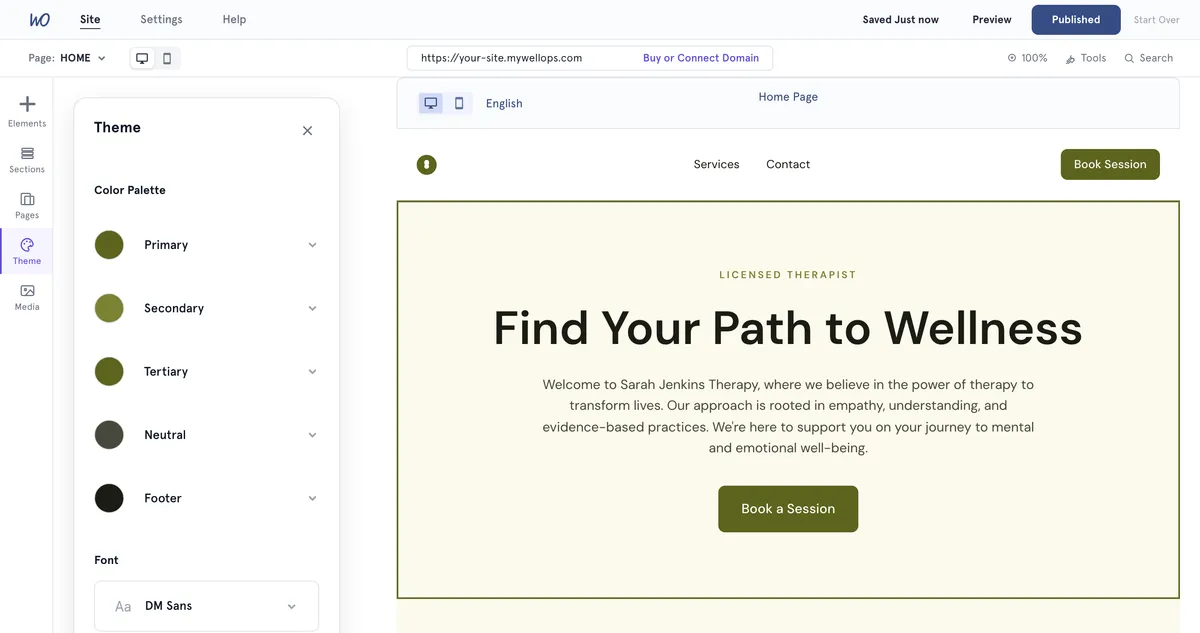
- Use the bar on the left to edit your site:
- Elements — shapes, lines, text, icons, frames and your images, placed anywhere on the page.
- Sections — ready-made blocks such as Hero, About, Testimonials and FAQ, plus the header and footer layouts.
- Pages — add, rename, reorder and delete pages.
- Theme — colour palette, font and corner radius.
- Media — the images you’ve uploaded.
- Settings — your logo, title, domain, contact details and more.
- To add a page, select Pages, then Add Page. In New Page, type a Page name and select Add. Each page has a menu with Rename, Hide from menu and Delete.
- Your work saves itself — the top of the editor says when it last saved, for example Saved 24 hrs ago. To save straight away, select that label. Select Preview to check the site.
- When you’re ready, select Publish.
What happens next
You’ll see Congratulations and your web address. Select Copy to copy it, or View site to open it. If you haven’t set up a domain, you get a free MyWellOps web address automatically.
The button now says Published. Hover over it to see View Site and Unpublish Site.
If your plan doesn’t include publishing, you’ll see Take your website live. Select Upgrade to publish, or Not now to keep working on your draft.
Find out more
- Add and manage pages on your website
- Edit sections on your website
- Add shapes, text and images to your website
- Change your website header and footer
- Change your website’s colours, font and corners
- Set your website’s logo, title and description
- Add contact details and social media links
- Connect your own domain to your website
Good to know
- Your changes don’t go live until you select Publish again. That includes changes in Settings, such as your title, logo and contact details.
- Choosing a template or Start Blank replaces what is already on that site. Start Over deletes the site’s content and takes you back to the start.
- Page limits: Free plan 3 pages, Starter 6, Growth and above no limit. Footer links count towards the limit.
- If your plan drops below Growth, your live site stops showing.
- To manage more than one site, select the logo at the top left of the editor to open Your sites. Select Add a new site, then choose how to build it. Each site shows LIVE, DRAFT or UNPUBLISHED, with Open editor and a menu for Unpublish and Delete.
Troubleshooting
I selected Publish and I’m asked to upgrade. Publishing needs the Growth plan or higher. On Free or Starter you can keep building and previewing your draft, and publish once you upgrade.
The builder won’t open on my phone or a small window. The Website Builder needs a screen at least tablet width. Use a laptop or desktop computer, or make your browser window wider.