
Before you start
- These settings reach visitors only once you publish your website. See Build and publish your practice website.
- The screen warns: For advanced users only. Wrong code can break your website’s layout or features. Only paste code from services you trust.
Steps
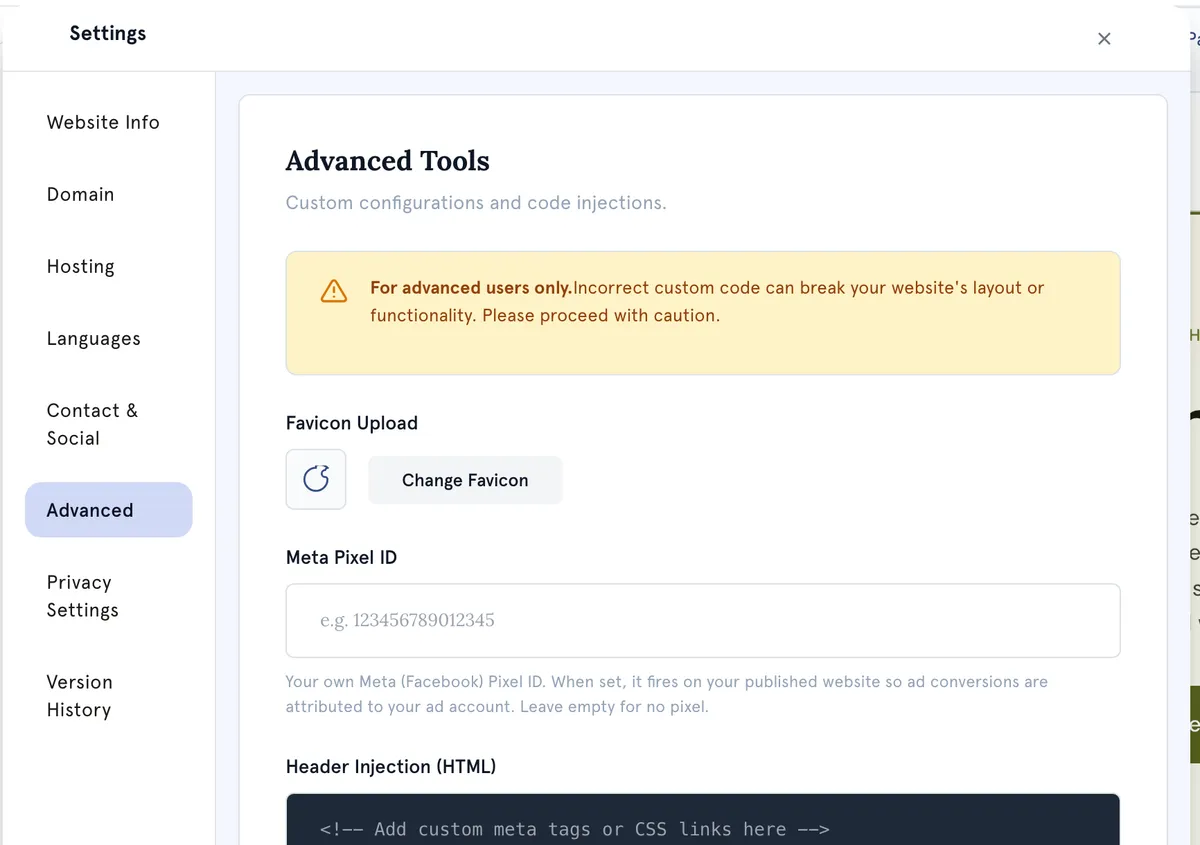
- Open Website Builder and select Settings at the bottom of the left bar.
- Select Advanced. The Advanced Tools panel opens.
- Make your changes (see below).
- Select Save Changes.
- Publish your website to put the changes live.
Add a favicon Under Favicon Upload, select Change Favicon and choose a small, square image. It must be an ICO, PNG, JPG or SVG file under 500KB. You see Favicon uploaded and a preview.
Add your Meta Pixel ID Type your own Meta (Facebook) Pixel ID into Meta Pixel ID. It’s numbers only, 5 to 20 digits. Leave it empty for no pixel.
Add JavaScript
Paste plain JavaScript into Footer Injection (JavaScript). Leave out any <script> tags — they’re removed. It runs on your website once the page has loaded.
Add HTML to the page head
Paste HTML into Header Injection (HTML). Use it for things like a <style> block or a link to a stylesheet. Scripts pasted here don’t run.
What happens next
After you publish, your favicon shows in the browser tab and your code runs on your website’s pages.
Good to know
- Each code box holds up to 40,000 characters.
- Blog pages don’t use your favicon or custom code.
- To undo a change, clear the box, select Save Changes and publish again.
Troubleshooting
My favicon upload was rejected. Check the file is ICO, PNG, JPG or SVG, and under 500KB.
My tracking or chat code doesn’t run.
Make sure it’s in Footer Injection (JavaScript), not the header box, and that it’s plain JavaScript. Code that loads another file with <script src=…> won’t work as pasted, because the tags are removed. Then check you’ve published since saving.
A site-verification tag isn’t recognised. Header HTML is added after the page loads, so verification tools that read your page source may not find it. Use another verification method the service offers, such as a DNS record.
Meta Pixel ID must be 5–20 digits (numbers only). Remove any letters or spaces. Copy the ID from your Meta account again.