
Before you start
- Open your site in the Website Builder and go to the page you want to change. See Add and manage pages on your website.
Steps
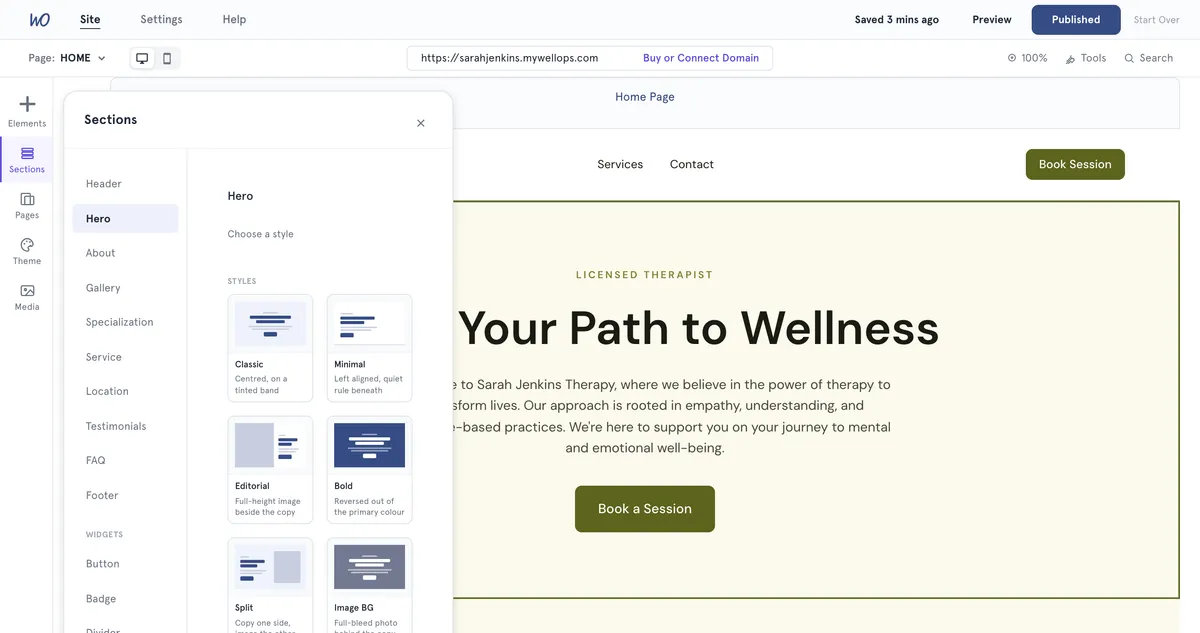
Add a section
- On the bar on the left, select Sections.
- Choose a section type on the left — for example Hero, About, Testimonials or FAQ. Smaller blocks are listed under Widgets, such as Button, Quote and Map. Video, Image and Audio are under Media.
- Under Choose a style, pick a design. Styles use your site’s colours. From other templates borrows that section’s design from another template. Current marks your template’s own design.
- Select Add to page. The section appears on the canvas and is highlighted.
If the page already has that type of section, the button says Update section instead. It changes the style of the existing section rather than adding a second one.
Edit a section
- Select the section on the canvas. The Edit Section panel opens on the right.
- Under Section style, pick a different design if you want one. It replaces the current style and keeps your text.
- Next to Section Background, select Change. Choose a colour under Solid colors, or type a HEX code. To use a picture, open Media and paste an Image URL.
- Edit the fields below. For a Hero section these include Small text above heading, Main heading, Short description and Hero image.
- For an image, select Upload to choose a file, or paste an image address. Select Remove to clear it.
- Select Save at the top of the panel.
Set up a button In a Hero section, Main button holds the button’s text and what it does:
- External link — type a full address starting with https://. It opens in a new tab.
- Link to page — type the page’s web address name, for example about-us.
- No action — the button stays on the page but doesn’t go anywhere.
Some templates also have a Second button. Clear its label to hide it.
Move or delete a section At the top of the Edit Section panel, use the arrows (Move section up and Move section down) to move the section. To remove it, select the bin icon (Delete section) and confirm.
Good to know
- The header and footer aren’t edited by selecting them on the canvas. Use Sections, then Header or Footer. See Change your website header and footer.
- The fields in Edit Section depend on the section and your template. Only fields your template shows are listed.
- Changes stay in your draft until you select Publish. Select Preview first to check them. See Preview your website.
- To pick from images you’ve already uploaded, see Manage your media library.
Troubleshooting
Edit Section says Unsaved changes. Select Save at the top of the panel to keep your edits.
Selecting a shape or text box opens a different panel. Free-form shapes and text sit on top of sections and have their own panel. Select an empty part of the section instead. See Add shapes, text and images to your website.