
Before you start
- Decide which phone number and email you want visitors to see. If you leave either blank, your site uses the phone or email from your MyWellOps profile.
Steps
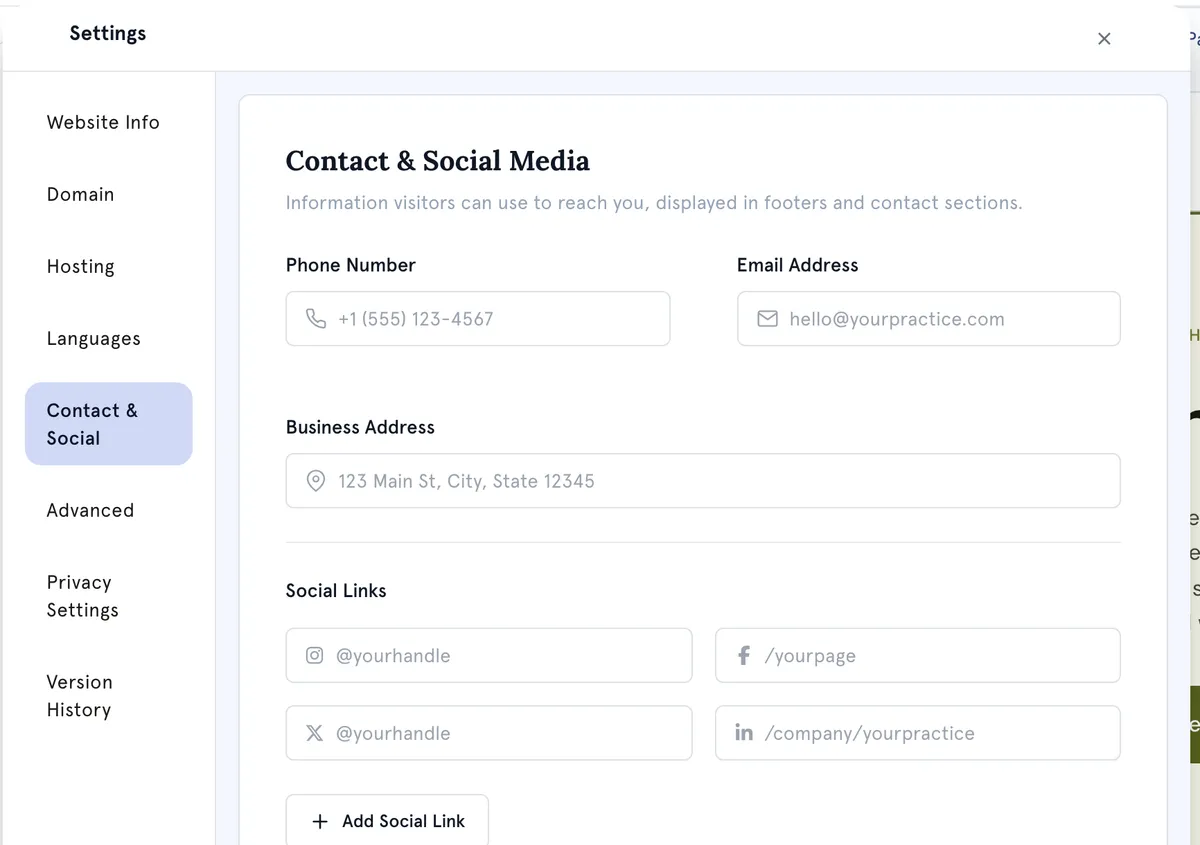
- Open your site in the Website Builder and select Settings at the bottom of the bar on the left.
- Select Contact & Social.
- Enter your Phone Number and Email Address.
- To add your address, start typing it in Find address and pick it from the list. This fills in Business Address. You can still edit it afterwards.
- Under Social Links, fill in the profiles you use: Instagram, Facebook, Twitter / X and LinkedIn. You can type a handle, such as @yourpractice, or paste the full web address.
- For any other profile, select Add Social Link and paste its web address. Select Remove to take one away.
- Select Save Changes. You’ll see Contact & social info saved.
- Select Publish in the editor to put the changes live.
Where these appear
- In your site’s footer: phone, email, address and an icon for each social profile you’ve filled in.
- On your contact page.
- In the header bar, if you use the Estuary header layout. See Change your website header and footer.
Social profiles you leave empty don’t appear.
Good to know
- Your changes are saved when you select Save Changes, but visitors only see them after you publish again.
- The editor updates straight away after saving, so you can check the footer before publishing.
Troubleshooting
I see Please fix the validation errors before saving. Look for the field marked Invalid email address, Invalid phone number or Invalid URL. Phone numbers can use digits, spaces, brackets, dashes, dots and a plus sign.
My old phone number still shows on my live site. Select Publish again. If you cleared the field instead of changing it, your site shows the phone number from your profile.