
Before you start
- The languages you add here are the languages you work in. They show under Languages on your booking page and in your website’s specialisation section, as well as in the language picker.
- Translation is automatic, by Google Translate. You can’t write your own translations.
Steps
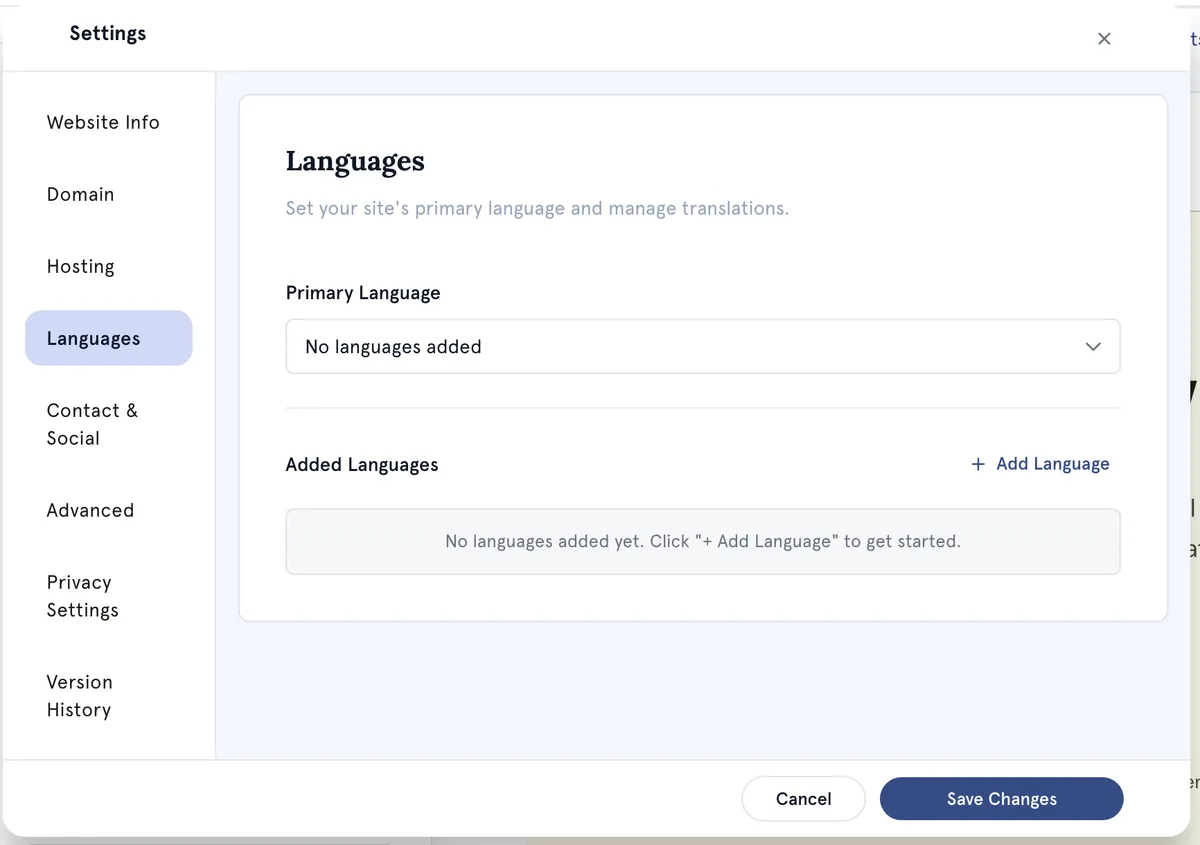
- Open Website Builder and select Settings at the bottom of the left bar.
- Select Languages.
- Under Added Languages, select Add Language.
- Type in Search Language and select the language you want. It’s added straight away.
Change your primary language Choose it in the Primary Language menu, or select Make Default next to it. Your primary language is marked Default.
Remove a language Select the bin icon next to it and confirm. You can’t remove the language marked Default — make another language the default first.
What visitors see
- On your privacy policy, cookie policy and blog pages, the header has a language picker. A visitor chooses a language and Google Translate translates the page in their browser.
- The picker offers these languages if you’ve added them: English, Spanish, French, German, Italian, Portuguese, Chinese, Japanese, Korean, Arabic, Hindi, Russian, Dutch, Polish and Turkish. Other languages still show as languages you work in, but aren’t offered in the picker.
- Your other pages, including home, booking and contact, don’t have the picker.
Good to know
- Language changes save as soon as you make them and appear on your website without publishing. Save Changes isn’t needed.
- Languages belong to you, not to one site. If you have more than one website, they all share the same list.
- Machine translation can get clinical or sensitive wording wrong. Check important information with a speaker of that language.
Troubleshooting
I added a language but it isn’t in the picker. The picker only offers the 15 languages listed above. Also check you’re on a policy or blog page — the other pages don’t have the picker.
A language I’ve already added is still in the add list. Selecting it again does nothing harmful. Your Added Languages list is the one that counts.