
Before you start
- Header and footer layouts are site-wide. Change them once and every page updates.
- Your logo and site name come from Settings → Website Info. See Set your website’s logo, title and description.
Steps
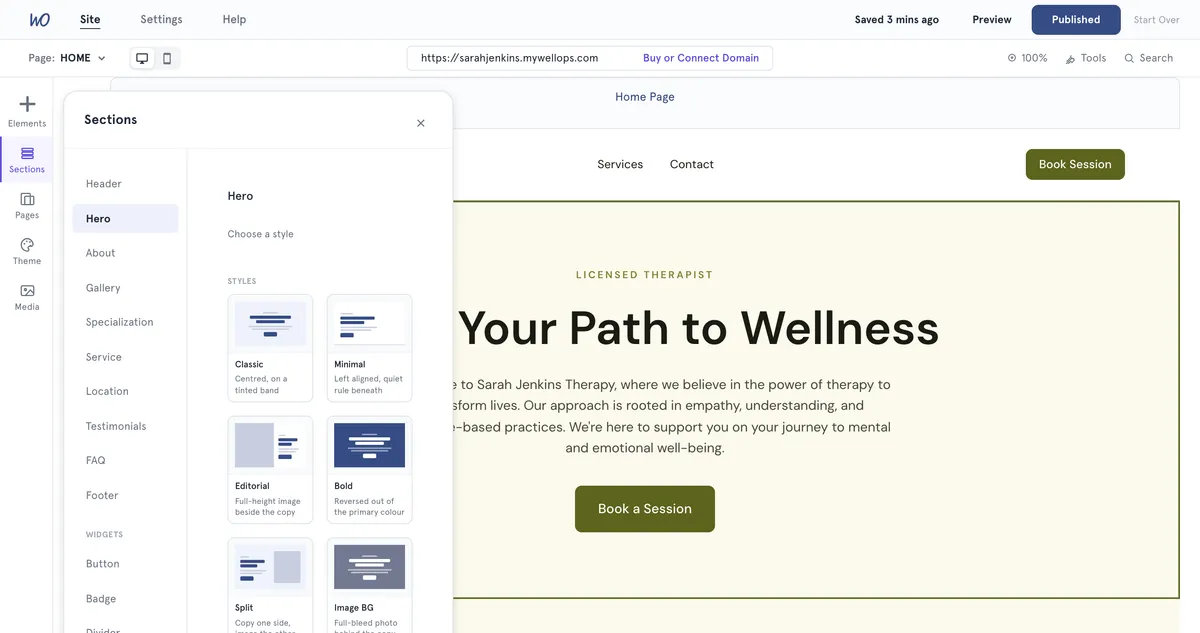
Change the header
- Open your site in the Website Builder. On the bar on the left, select Sections.
- Select Header at the top of the list.
- Under Choose a style, pick a layout. The change applies to every page, on any template:
- Classic (Default) — logo left, links right, book button.
- Delta — navigation centred on its own row.
- Estuary — a bar with your phone and email above the navigation.
- Cascade — a minimal bar with a Menu dropdown.
- Tributary — a bordered bar, navigation beside the button.
- Rivulet — a compact bar with a menu button.
- To change the header’s colour, select Change next to Section Background. Pick a colour under Solid colors or type a HEX code.
Change the footer
- In Sections, select Footer.
- Under Footer layout, pick a layout. Each one has a short description, from “Four columns — brand, navigation, contact, policies” (Classic) to One line — brand and copyright (Rivulet).
- Edit Clinic name, Description and Copyright. To use a different logo in the footer, add it under Footer logo.
- To change the footer’s colour, use Section Background, or Footer in the Theme’s colour palette.
What’s in the menu
The header’s links are set by MyWellOps, not by your list of pages. Depending on your template and layout, they include Services, About, Contact, plus Blog and Events when your site has them. Most layouts also show a booking button.
The footer lists Home, About, Services, Contact (and Blog or Events when you have them), your contact details and social links, and links to your Privacy Policy and Cookie Policy.
On phones, the header’s links fold into a menu button on every layout.
Good to know
- You can pick the header and footer layouts separately — for example a Cascade header with a Delta footer.
- The layouts keep your theme’s colours and fonts. To change those, see Change your website’s colours, font and corners.
- The phone, email, address and social links in the footer come from Settings → Contact & Social. See Add contact details and social media links.
- Changes stay in your draft until you select Publish.
Troubleshooting
Nothing happens when I select the header on the page. The header and footer can’t be edited by selecting them on the canvas. Use Sections, then Header or Footer.
My logo isn’t showing in the header. Under Header in Sections, the Logo box shows what’s saved. If it says No logo, add one in Settings → Website Info, then publish again.
A page I added isn’t in the menu. The menu doesn’t list pages you add. Link to the page from a button instead. See Add and manage pages on your website.