
Before you start
- You need the Growth plan or higher. On a lower plan, Connect Custom Domain opens Connect your own domain with Upgrade to Growth instead.
- You need a domain you own, and a login for the company you bought it from (your domain provider).
- Your website needs to be published for your domain to show it. See Build and publish your practice website.
Steps
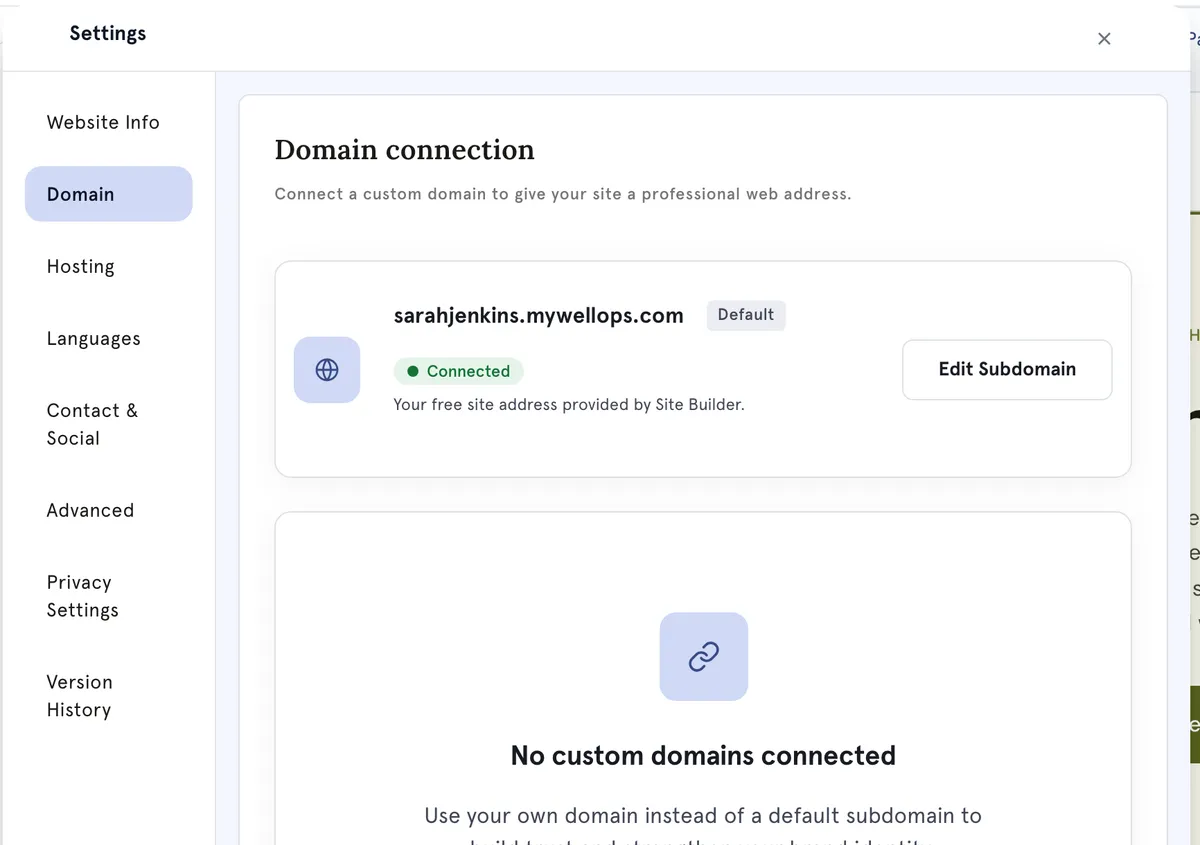
- Open your site in the Website Builder and select Settings at the bottom of the bar on the left.
- Select Domain. You’ll see your free address — for example julie34.mywellops.com, marked Default and Connected — which you can change with Edit Subdomain. Under No custom domains connected, select Connect Custom Domain.
- Under Enter your domain, type your domain, for example myawesomebrand.com. Select Continue, or Set up manually if you see that instead.
- Close the window without copying anything from it. In Domain, open the menu next to your domain and select View DNS Records.
- The Verify DNS Connection window shows a Name, Type and Value, with a copy button for each. Keep it open.
- Log in to your domain provider’s DNS settings. First remove any existing A or CNAME record with the same name. Then add a CNAME record with exactly those details.
- Wait for the change to spread. This often takes 5 to 15 minutes, but can take up to 48 hours.
- Select VERIFY CONNECTION in the Verify DNS Connection window. Or, in Domain, open the menu next to your domain and select Verify Domain.
Let MyWellOps add the record for you If you see Connect automatically (recommended) in step 3, you can use it instead. A connection window opens so the record can be added at your domain provider for you. If your provider isn’t supported, or you close it, carry on from step 4. Either way, check the result with Verify Domain.
What happens next
If the check passes, you’ll see Domain connected and your site shows at your domain. A secure (HTTPS) certificate is set up for you. This usually takes 1 to 5 minutes after the DNS check passes.
If the check fails, you’ll see Domain verification failed. Close the window, check the record, wait a few minutes, then select Verify Domain again.
Good to know
- The record type is always CNAME — not A, and not TXT. Check for typos and extra spaces.
- At some providers, such as GoDaddy and Namecheap, you enter the name of your main domain as @.
- Once your domain is connected, select Make default to make it your main web address.
- Copy URL copies your domain’s address. Remove domain disconnects it. You can add it again afterwards.
- If your plan drops below Growth, your site stops showing on any domain.
Troubleshooting
I keep getting Domain verification failed. Check that you removed any old A or CNAME record with the same name, and that the Value matches exactly. DNS changes can take several hours at some providers, so wait and try Verify Domain again. The check also fails while your secure certificate is still being set up, so try again after a few minutes.
My site shows Not secure after connecting. The secure (HTTPS) certificate usually takes 1 to 5 minutes after the DNS check passes. Select Verify Domain again, then refresh your site. If it doesn’t clear, select Help at the top of the editor.
I selected Connect Custom Domain and I’m asked to upgrade. Connecting your own domain needs the Growth plan or higher. You can keep building your site until you upgrade.