
Before you start
- You need to be able to add HTML or custom code to the other website.
Steps
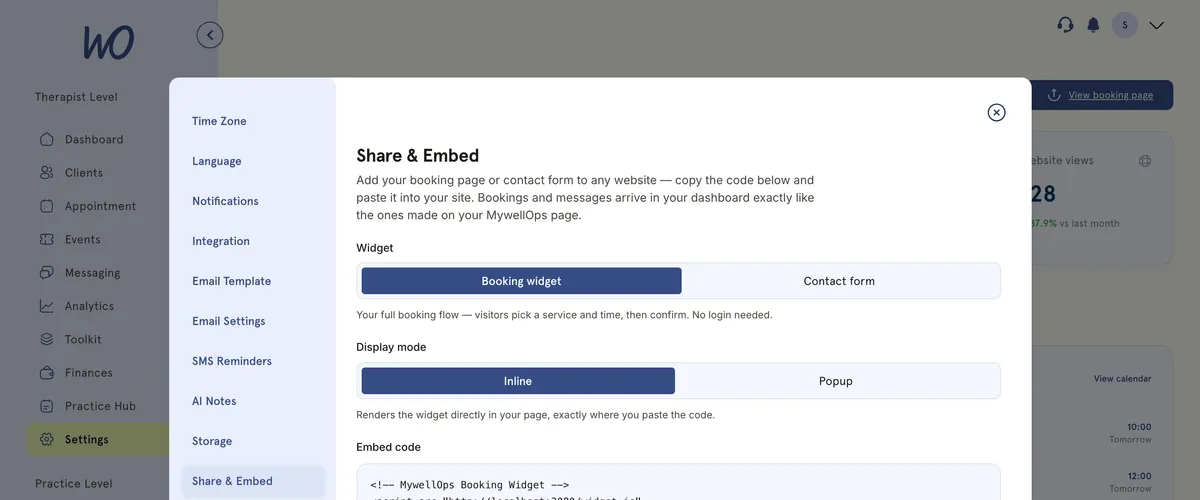
- In the sidebar, select Settings, then Share & Embed.
- Under Widget, choose Booking widget or Contact form.
- Under Display mode, choose Inline or Popup.
- To try it at full size first, select Open widget in new tab.
- Select Copy embed code under Embed code.
- In your other website’s editor, paste the code into an HTML or custom code block. For Inline, paste it exactly where you want the widget to appear. For Popup, paste it anywhere on the page.
- Save and publish that page on your other website.
What happens next
With Inline, the widget shows inside your page and resizes itself to fit.
With Popup, a floating button appears at the bottom right of the page. It says Book a session for bookings, or Contact us for the form. Visitors select it to open the widget over the page. They can close it with the cross, the Escape key, or by clicking outside it.
With the booking widget, visitors pick a service and a time, then confirm. They don’t need to log in. Bookings arrive in your dashboard, just like other bookings.
With the contact form, visitors fill in First name, Last name, Email and a message, then select Send message. The message is emailed to you.
Good to know
- The widget shows a small Powered by MywellOps badge unless your plan includes white-label. The screen says to upgrade to a Professional plan to remove it.
- To change the popup button’s text, add
data-button-text=Your textinside the code. - You can put more than one widget on the same page.
Troubleshooting
The widget doesn’t show on my site. Make sure you pasted the code into an HTML, code or embed block, not a normal text block. Then save and publish the page on your website.
The inline widget looks squashed. Give it a wider column or container. It resizes to fit, but a very narrow column cramps it.
Can I change the widget’s colours? No. The widget uses MyWellOps’s own colours whatever your website looks like, so it’s the same on every site.