
Steps
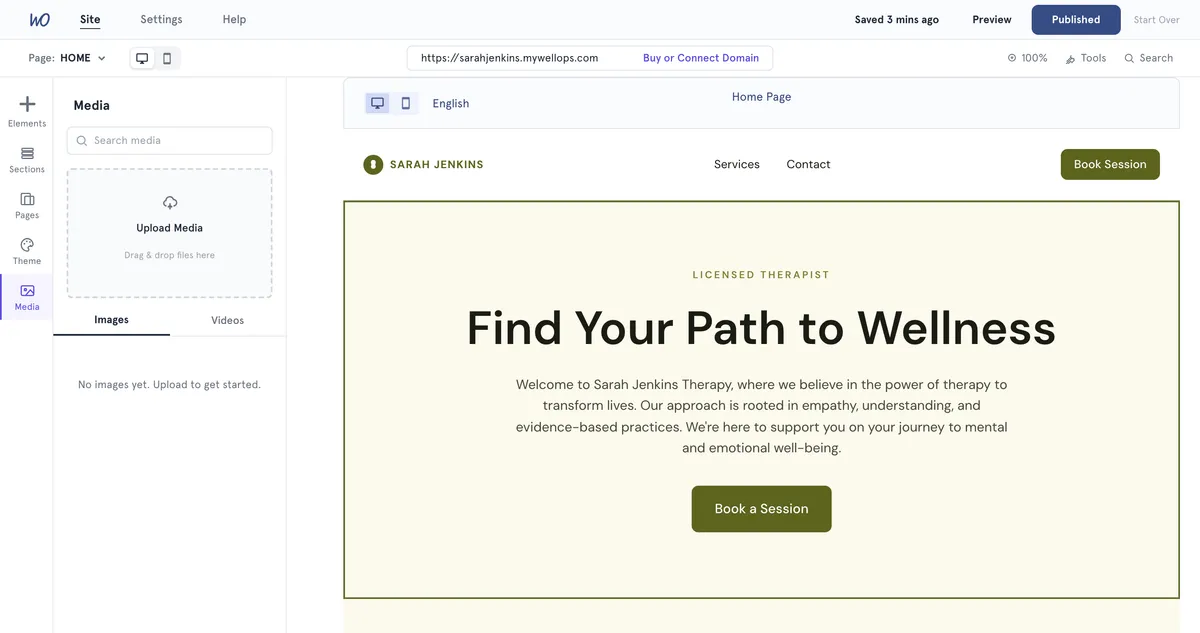
- Open Website Builder and select Media in the left bar.
- To upload, select the Upload Media box and choose files, or drag files onto it. You can add several at once.
- Switch between Images and Videos to see each kind. Use Search media to find a file by name.
Place an image on a page Select the image, or drag it onto the page. It lands as an image you can move and resize.
Use a video Add a Video section to the page. In the media library, open the video’s menu and choose Download. The file opens in a new tab. Copy that tab’s address and paste it into the section’s Video link.
Rename, download or delete a file Hover over the file and select the three dots. Choose Rename, Download or Delete. Deleting can’t be undone.
What you can upload
- Images: JPEG, PNG, WEBP or GIF, up to 10 MB each.
- Videos: MP4, WebM or MOV, up to 50 MB each.
Storage
Every file you upload counts towards your account’s storage. In Settings → Storage, images show under Media & attachments and videos under Video recordings. Deleting a file frees its space.
When your storage is full, an upload that doesn’t fit can be refused. You’re then offered more storage or an upgrade.
Good to know
- Names can use letters, numbers, hyphens and underscores, up to 80 characters. Other characters, such as spaces, become underscores.
- Image fields inside a section have their own Upload button. Images added that way don’t appear in the media library.
- Before you delete a file, check it isn’t still on one of your pages. Deleting removes it everywhere.
Troubleshooting
My upload failed. Check the file type and size against the lists above. A message under the upload box says what went wrong.
I placed a video and it doesn’t play. Videos placed straight from the library are added as images, so they can’t play. Delete it and use a Video section instead, as described above.
I can’t find an older file. The library shows your newest 100 files in each tab. Type part of the name into Search media.