
Before you start
- Open your site in the Website Builder on a computer.
- Page limits depend on your plan: Free 3 pages, Starter 6, Growth and above no limit. Hidden pages count too.
Steps
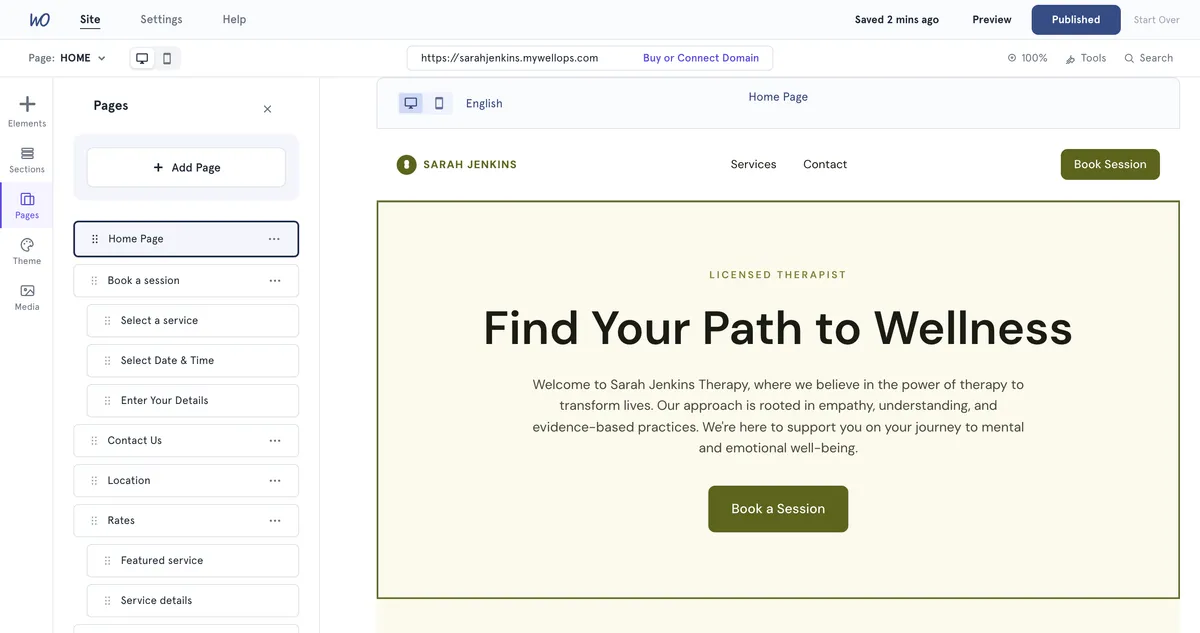
- On the bar on the left, select Pages.
- Select Add Page. The New Page window opens.
- Leave Blank page selected. Type a Page name of up to 40 characters.
- Select Add. The new page opens in the editor, empty. Select Designed Section or Add Section to add a section, or Add Elements to place shapes and text.
Add an Events page In New Page, select Events page, then Add. It lists the events you’ve published and moves them to Past events when they’re over. It needs the Retreats & Events add-on, and a site can have one Events page.
Rename a page Select the … menu next to the page, then Rename. Type the new name and confirm.
Change the order Drag a page by the dotted handle on its left to a new place in the list.
Delete a page Select the … menu next to the page, then Delete, and confirm. You can’t delete the last page on a site.
Linking to a new page
Your site’s header menu shows a fixed set of links — such as Services, Contact, and Blog or Events when you have them. Pages you add aren’t added to it.
To send visitors to a new page, link to it from a button. For example, in a Hero section’s Main button, choose Link to page and type the page’s web address name. See Edit sections on your website.
Good to know
- Each page gets a web address made from its name. For example, About Us becomes about-us. Renaming a page later keeps its original address.
- Some names are reserved because the site already uses them, such as Contact, Blog, Reviews and Rates. You’ll see This URL is reserved. Pick another name.
- Some pages, like your booking page, show their steps underneath them in the list. Selecting a step opens that page.
- Your Privacy Policy and Cookie Policy pages don’t appear in this list and don’t count towards your limit.
- New pages don’t go live until you select Publish. See Build and publish your practice website.
Troubleshooting
The Add button stays greyed out. The name is empty, too long, reserved, or already used by another page. Change the name and try again.
I can’t find my new page on my live site. Check you’ve published since adding it. Then add a button that links to it, as the header menu won’t show it.