
Before you start
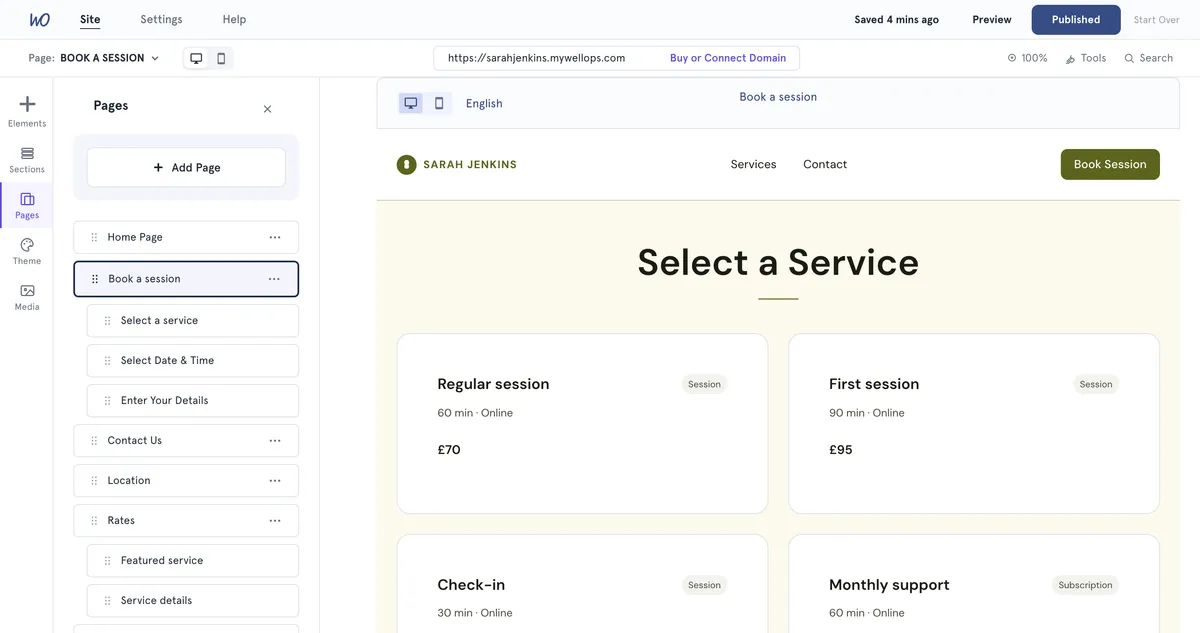
Your website has its own Book a session page. It’s a different page from the booking link on your dashboard — see Share your booking link for that one.
The booking button in your header
Your website’s header has a booking button that goes to your Book a session page.
- Its wording comes from your template. Depending on the template, it says Book a session, Book Session, Book a Session, Book a Call, Book a Consult, Book a Class or Book Now. You can’t change it.
- Its colour is your Primary colour. Change it in Theme → Color Palette → Primary. The text is white, so pick a colour dark enough to read against.
- Its corners follow Corner radius in Theme: Square, Subtle, Rounded or Pill. This changes all your buttons, not just this one.
The main button on your home page
The large button in your home page’s top section can be changed.
- Open Website Builder and select the top section of your home page.
- In Edit Section, find Main button.
- Type the button text. Leave it empty to use the template’s wording.
- Choose what it does:
- Leave the link empty to send visitors to your Book a session page.
- External link — type a full address starting with https://. It opens in a new tab.
- Link to page — type the last part of the page’s address, such as
contact. - No action — the button stays but goes nowhere.
- Select Save, then publish.
The booking page
Open it from Pages or the Page: switcher. The page shows your booking steps in your theme’s colours and fonts. You can’t add sections to it or change its wording.
Visitors go through these steps:
- Select a Service — skipped if they came from a particular service’s link.
- How would you like to meet? — only if the service is offered in more than one way.
- Select Date & Time.
- Enter Your Details, then confirm.
Change what the page shows
Everything on the booking page comes from your practice settings, not the Website Builder:
- Services — the page lists services that are published and public, and not archived. See Create a service clients can book.
- Order — pinned services come first, then the order you set in Manage service view. See Choose the order clients see your services in.
- Times — the dates and times come from your availability. See Set your working hours so clients can book.
Changes there show the next time someone opens the page. You don’t need to publish your website again.
Good to know
- The page’s address is your website address followed by /book-a-session.
- To check the page, open Preview in the builder. Bookings are switched off there. See Preview your website on desktop, tablet and mobile.
- A booking made on your live website is a real booking and appears with your other appointments.
Troubleshooting
I changed the header button’s text but the website still shows the old wording. The header’s CTA button label doesn’t change the button on your main pages. The wording is set by your template.
A service is missing from the booking page. Check it’s published, set to public, and not archived.