
Before you start
- Elements are free-form: they sit on top of the page wherever you put them. For ready-made blocks like a Hero or FAQ, use sections instead. See Edit sections on your website.
- To place your own photos, upload them first. See Manage your media library.
Steps
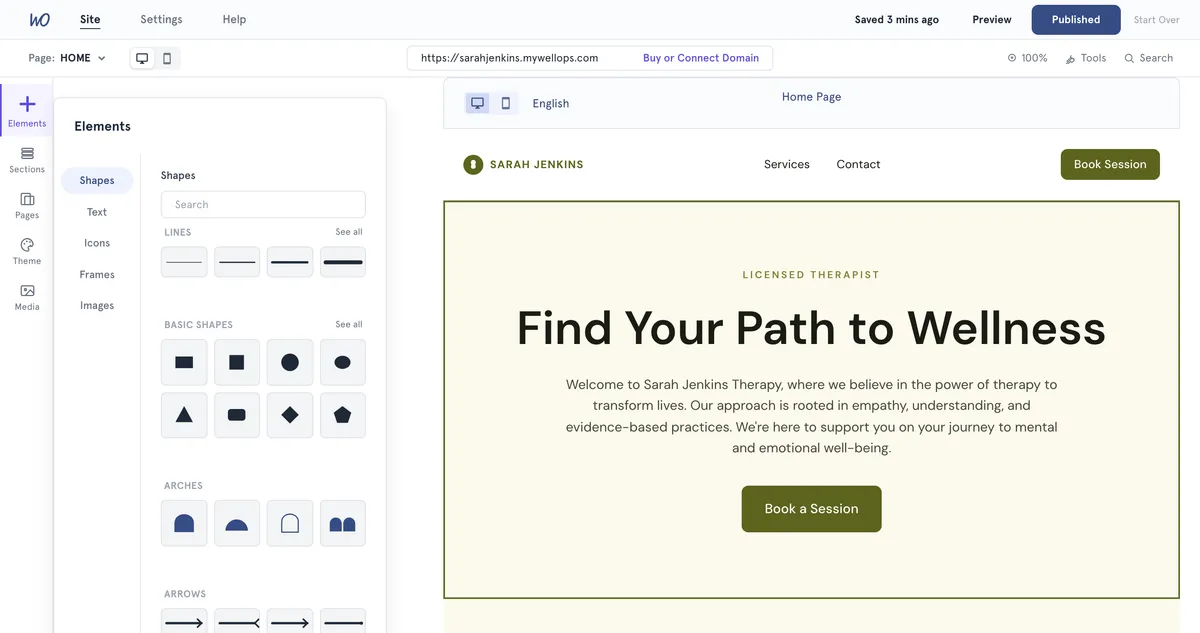
- On the bar on the left, select Elements.
- Pick a tab: Shapes, Text, Icons, Frames or Images. Use Search to find something, or See all to open a full group.
- Select an item to drop it in the middle of your screen, or drag it onto the page.
- Drag the element to move it, and drag its corners to resize it.
- With the element selected, use the panel on the right to style it.
Add text Under Text, choose Heading, Subheading, Body text or Caption. Double-click the text on the page, or press Enter, to type. In the Edit Text panel you can change the Font, Size, Style, Alignment, Text colour, Letter spacing and Line spacing. Add a web address under Link to make the text a link.
Style a shape, line or icon Under Shapes you’ll find Lines, Basic shapes, Arches and Arrows. In the panel, change the Fill, Stroke, Stroke style and Stroke weight. Some shapes also have Corner rounding or Sides. Use Transparency to fade any element.
Put a photo in a frame
- Under Frames, select a frame shape, such as a circle or an arch.
- Keep the frame selected, open Images and select one of Your images. The photo fills the frame.
Arrange elements In the panel, under Position:
- Forward, Backward, To front and To back change which element sits on top.
- Top, Middle, Bottom, Left, Centre and Right line the element up.
- Width, Height, X, Y and Rotation set exact values.
Copy, lock or delete Select an element and right-click it for Copy, Paste, Duplicate, Lock and Delete. The same actions, apart from Paste, are at the bottom of its panel. A locked element can’t be moved or deleted until you select Unlock.
Good to know
- Keyboard shortcuts: Delete or Backspace removes the selected element. Ctrl+D (⌘D on a Mac) duplicates it. Ctrl+C and Ctrl+V (⌘C and ⌘V) copy and paste.
- Elements belong to the page you placed them on.
- On phones, elements don’t stay where you put them. They’re shown full width, one under another, below all your sections. Select Edit your site in mobile view to check how that looks.
- Selecting an empty part of the page still opens that section’s editor, even on the Elements tab.
- Changes stay in your draft until you select Publish.
Troubleshooting
The Images tab is empty. You’ll see No images yet. Upload photos in Media on the bar on the left, and they’ll appear here.
I can’t move or delete an element. It’s probably locked. Right-click it and select Unlock.
I can’t select an element because another one is on top. Select the top element and choose To back under Position, or move it aside.